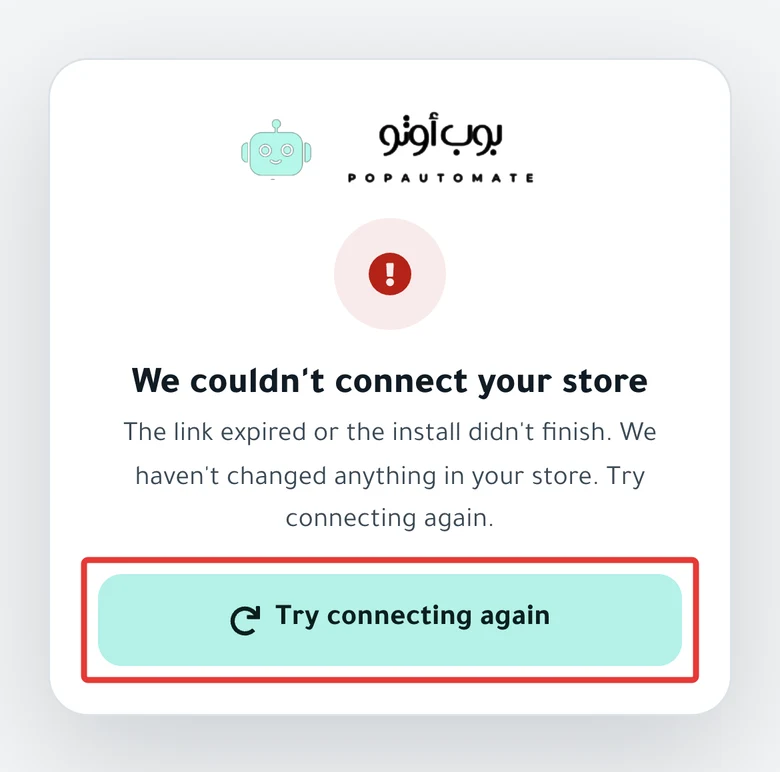
Connection problem: "We couldn't connect your store"
If you see the We couldn't connect your store card after you approve in Salla or Zid, your store is connected and your account is saved. Only the sign-in is left. Open the sign-in page and click Sign in with Salla or Sign in with Zid.
What you see
- After you approve in Salla or Zid, the We couldn't connect your store card appears.
- Under the title: "The link expired or the install didn't finish. We haven't changed anything in your store. Try connecting again."
- Below it is the Try connecting again button.
Why it happens
The card appears when PopAutomate could not sign you in to your account after you approved. The causes:
- You refreshed the Your store is connected page, or went back to it with the back button. The sign-in code on the page works only once.
- The page opened more than 2 minutes after you approved.
In both cases your store stays as it was.
Fix
You refreshed the page after "Your store is connected"
Your store is connected and your account is ready. Do not install the app again.
- Open the PopAutomate sign-in page.
- Click Sign in with Salla or Sign in with Zid, depending on your store.
- Approve on the Salla or Zid page.
- You land on Home right away.
The page opened more than 2 minutes after you approved
The sign-in code expired, but your store is connected and your account is ready. Do not install the app again.
- Open the PopAutomate sign-in page.
- Click Sign in with Salla or Sign in with Zid, depending on your store.
- Approve on the Salla or Zid page within 10 minutes of opening it.
- You land on Home right away.
On Salla, do not use the Try connecting again button on the card: it opens the PopAutomate page on the Salla App Store.
On Zid, the button works like Sign in with Zid and opens the approval page on Zid.
You installed from the Zid App Market and landed on the sign-in page
If you started the install from the Zid App Market, you may land on the sign-in page with "We couldn't sign you in through your store. Try again, or use your email and password."
- Click Sign in with Zid on that same sign-in page.
- Approve the PopAutomate connection on the Zid page.
If the same message comes back, read Can't sign in with Salla or Zid in PopAutomate.
Your email or phone is used in another account
Each PopAutomate account is connected to one store. If the store owner's email or phone is already in another PopAutomate account, the install does not finish.
You land on the sign-in page with "We couldn't sign you in through your store…", not on the We couldn't connect your store card.
- Do not install again: a second try ends with the same message.
- Follow Your email or phone belongs to another store in the article about signing in with Salla or Zid.
Still stuck?
Contact us on WhatsApp. The steps are in Contact PopAutomate support on WhatsApp. Send:
- Your store name and link, and whether it is on Salla or Zid.
- The store owner's email.
- A screenshot of the card or the message, and roughly when you installed.
For other problems, go back to Fix a PopAutomate problem: where did you see it?.
Did this article answer your question?