Can't activate a schedule: what the red message means
Read the red message under the step: a duplicate name, a start time that has passed, an end before the start, or a price that becomes zero. Fix it, then click Enable scheduling.
If something in a step is missing or wrong, PopAutomate does not take you to the next step and does not save the schedule. Find the message text here and follow its fix.
What you see
- You click Next and stay on the same step, with a red message under a field.
- You click Enable scheduling or Activate and run now, and the page takes you back to the earlier step where the red message appears.
- The Enable scheduling button is grayed out in Review before you turn it on.
- A red message appears in Review before you turn it on, such as "The schedule wasn't saved. Try again."
Why it happens
PopAutomate checks each step before it takes you to the next one, and checks every step again when you activate. The message tells you what is missing: a name, a value, products or a time. Sometimes the steps are fine, but the save itself did not go through.
Fix
The name, change type or products are missing
| Message | Fix |
|---|---|
| "Enter a name for the schedule." | Enter a name in Schedule name under What happens?. |
| "You already have a schedule with that name. Choose another." | Change the name. No two of your schedules can share a name, except the ones in Deleted. |
| "Choose what you want to happen." | Choose the type of change under What happens?, such as Discount. |
| "Enter the promo title." | Enter the text in the promo title field. |
| "Enter the category name." | Enter the name of the category you want to add the products to or remove them from. |
| "Choose at least one category." | Under Which products?, choose a category. |
| "Choose at least one product." | Under Which products?, choose a product. |
| "Upload the file first." | Upload a CSV file under Which products?. |
If you see "You already have a schedule with that name." and you do not remember a schedule with that name, open Schedules and look for it. If you find a schedule with no products, open its page, click Delete, then Move to Deleted. Then activate your schedule again.
If you open a CSV schedule with Edit, you see "Upload the file first." If you upload a new file, an error message appears and PopAutomate does not accept the file. Delete the schedule with Delete, and create a new schedule with the file.
The start time has passed
| Message | Fix |
|---|---|
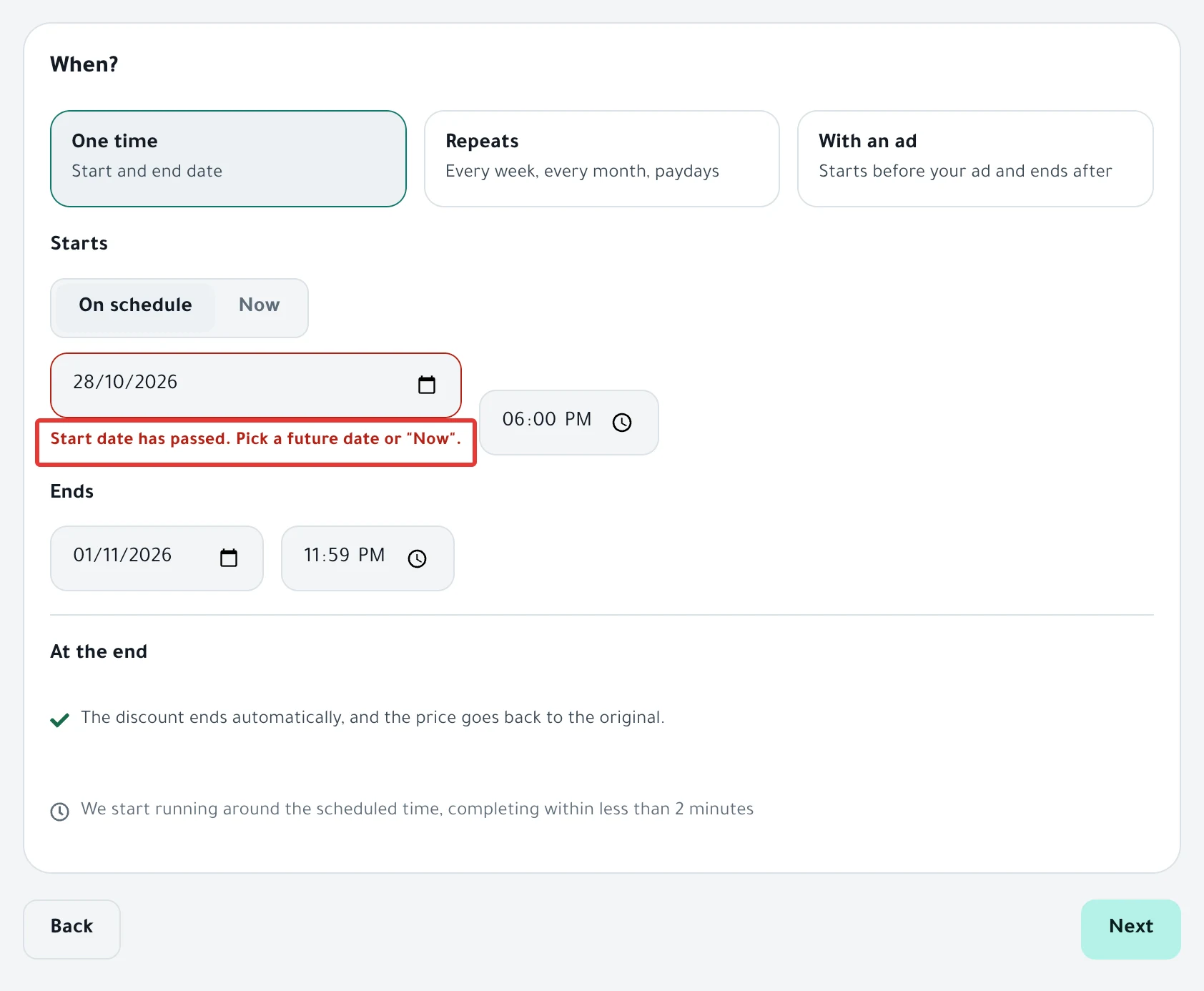
| "Start date has passed. Pick a future date or "Now"." | Under When?, choose a date and time later than now, or choose Now. |
| "Announcement date has passed." | Choose an ad time later than now. Details in Ad hours. |
PopAutomate checks the time in Riyadh time (GMT+3). If your store's time zone is different, you may see "has passed" for a time that is close but has not passed for you. Choose a time at least an hour later. Also read Change the schedule time zone in PopAutomate.
If Starts is set to Now, the Save as draft button is grayed out and you see "A draft needs a start time. Change "Now" to a set time." Choose On schedule to save it as a draft.
The end is before the start
| Message | Fix |
|---|---|
| "End date must be after start date." | Under Ends, choose a date and time after the start. |
| "The end time must be after the start time." | In a repeating schedule, choose a To time after the From time on the same day, or turn on All day. |
| "The offer ends before the last step's day. Use fewer days or make the offer longer." | In a Tiered discount, move the end later or use fewer step days. |
An end time is needed to restore products
| Message | Fix |
|---|---|
| "To restore products you need to set an end." | It appears when you edit an older one-time schedule that has no end time. You cannot save the edit: create a new schedule with an end time. |
| "Pick an end date." | Under Ends, choose the end date. |
| "The offers category is removed at the end, so the price must be restored at the end." | Under At the end, choose Restore it. |
The discount value or price is wrong
| Message | Fix |
|---|---|
| "Enter the discount value." | Enter the discount number under What happens?. |
| "Value must be greater than zero." | Enter a number greater than zero. |
| "Enter a percentage from 1 to 99. A percentage below 1% isn't accepted." | Enter a percentage from 1 to 99, such as 15. |
| "Percentage must be less than 100%." | Enter a percentage below 100. |
| "Discount must be less than 100%." | In a price change by a percentage decrease, enter a percentage below 100. |
| "Each step needs a percentage between 1 and 99." | In a Tiered discount, enter a percentage from 1 to 99 for each step. |
| "Steps start on day 1, and each step's day comes after the one before (2 to 5 steps)." | Start the first step on day 1, and give each step a later day than the one before it. |
| "A tiered discount is for a one-time offer or an offer with an ad, not a repeating one." | Choose One time or With an ad under When?. |
If the Enable scheduling button is grayed out in Review before you turn it on, some products would end up at a wrong price. You see "Some products would end at a wrong price (marked below). …", and next to each of those products "Price becomes zero or less" or "Offer price isn't lower than the original".
- Click Back until you reach What happens?, and lower the discount value. This usually happens with a fixed-amount discount that is larger than the price of a cheap product.
- Or go back to Which products? and remove those products. Under Categories, click Exclude it next to each one.
How to do it: Exclude products from a discount: skip some in a category.
Repeat values are missing
| Message | Fix |
|---|---|
| "Choose at least one day." | Choose one or more days of the week. |
| "Choose at least one date." | Choose one or more days of the month. |
| "Enter a number from 2 to 365." | In Every … days, enter a number from 2 to 365. |
| ""Until" date has passed." | Under Until date, choose a date that has not passed, or choose Until you stop it. |
| "Enter 1 or more." | Under Number of times, enter 1 or more. |
| "A repeating increase or decrease must be restored at the end of each run, or it adds up." | Under At the end, choose Restore it. |
The full repeat setup is in Repeat an offer every week on Salla and Zid.
Ad hours are out of range
| Message | Fix |
|---|---|
| "Pick where the ad shows." | Choose the place from the Where does the offer show? list. |
| "Announcement date has passed." | Under When does the offer go live?, choose a date and time later than now. |
| "Hours before the ad: a whole number from 0 to 168." | In the Starts field, enter a whole number from 0 to 168. |
| "Hours after the ad: a whole number from 1 to 720." | In the field after "hour(s) before, continues", enter a whole number from 1 to 720. |
The schedule was not saved
If you see "The schedule wasn't saved. Try again." in Review before you turn it on:
- Wait a minute, then click Enable scheduling again.
- If it happens again, open Schedules in a new tab and make sure the schedule was not saved before you click a third time.
- If you find it in the list with no products, open its page, click Delete, then Move to Deleted. Then activate your schedule again.
You may see another message in its place that says which of your choices conflict, such as "An offer with an ad runs once; it cannot repeat." Change what the message names, then activate again.
The schedule was saved without a permit
If you see "The schedule was saved but the permit wasn't linked.", the schedule is saved, but the permit you chose under Permit number is not linked to it.
- Open Permits from the menu on the left, or from the account menu on your phone.
- Click + Link schedule next to the permit, choose the schedule, then click Save.
After this message, PopAutomate opens the schedule page. Do not create the schedule again: it is saved. The full steps to link a permit are in Ministry of Commerce discount permit: save and link it.
Still stuck?
Click Support in the menu on the left. On your phone, tap Contact us in the account menu. The steps are in Contact PopAutomate support on WhatsApp. Send:
- The schedule name.
- The exact text of the red message.
- A screenshot of the step with the message.
Next: Schedule a discount on Salla and Zid, or go back to Fix a PopAutomate problem: where did you see it?.
Did this article answer your question?