Ministry of Commerce discount permit: save and link it
Save the number and dates of your discount permit (the license the Saudi Ministry of Commerce requires for sales and discounts) on the Permits page, and link it to a discount schedule. PopAutomate only saves what you enter. It does not request the permit from the Ministry, and it does not check it.
Steps
Path: Permits > Add permit
- Click Permits in the menu on the left. On your phone, tap the account button at the top (the circle with your first initial), then Permits.
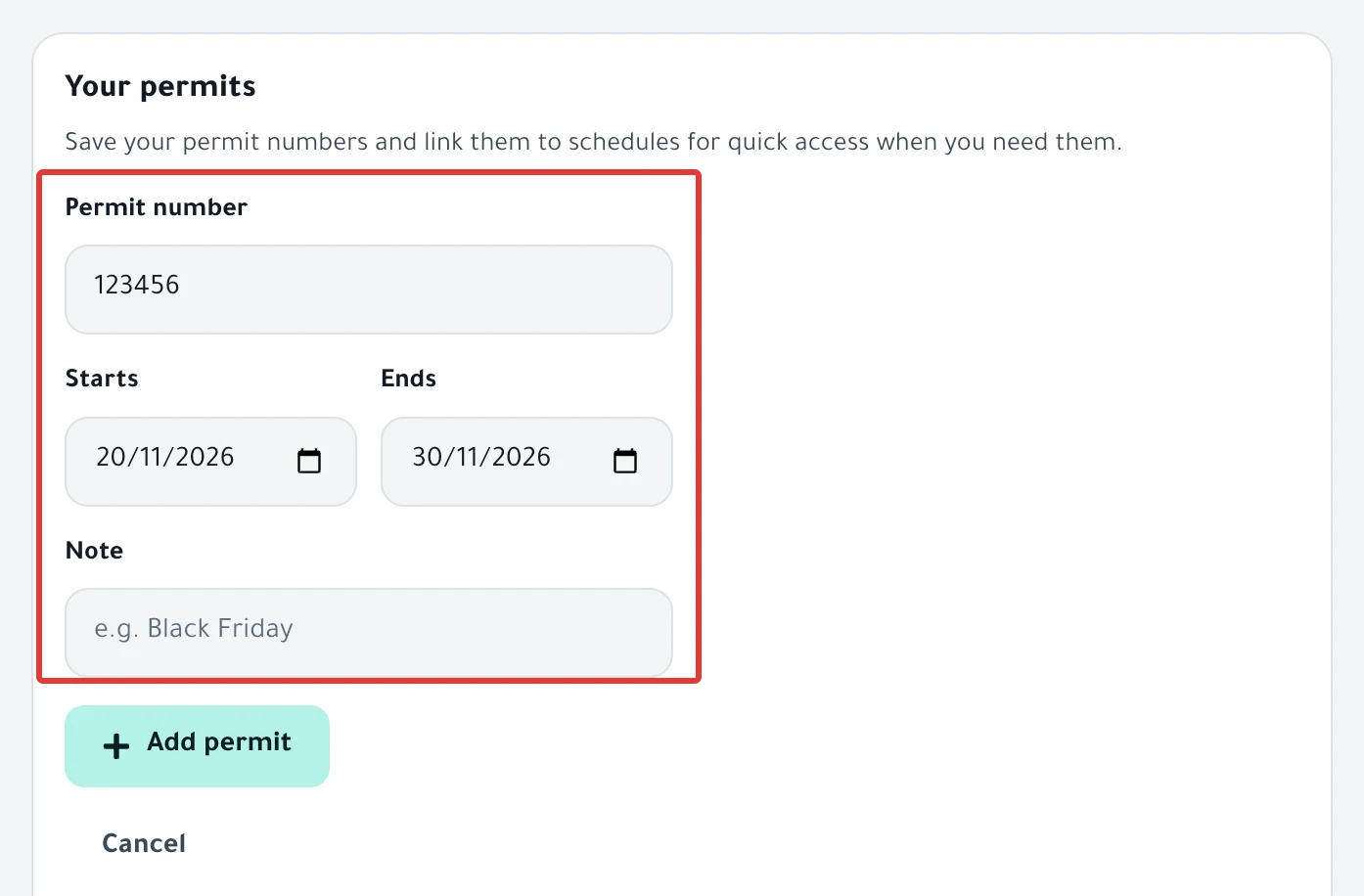
- The Discount permits page opens. Next to Your permits, click Add permit.
- Enter the Permit number, and choose the Starts date and the Ends date as they are on your permit. In Note, you can enter the occasion name, such as "White Friday".
- Click Add permit under the fields. The message "Permit added." appears, and the permit appears under Your permits.
- Under the permit, click + Link schedule.
- In the Link a schedule dialog, choose your discount schedule under Pick a schedule, then click Save.
You can also choose the permit while you set up the discount schedule. In the last step, choose its number under Permit number, or leave No permit. Read Schedule a discount on Salla and Zid.
Result
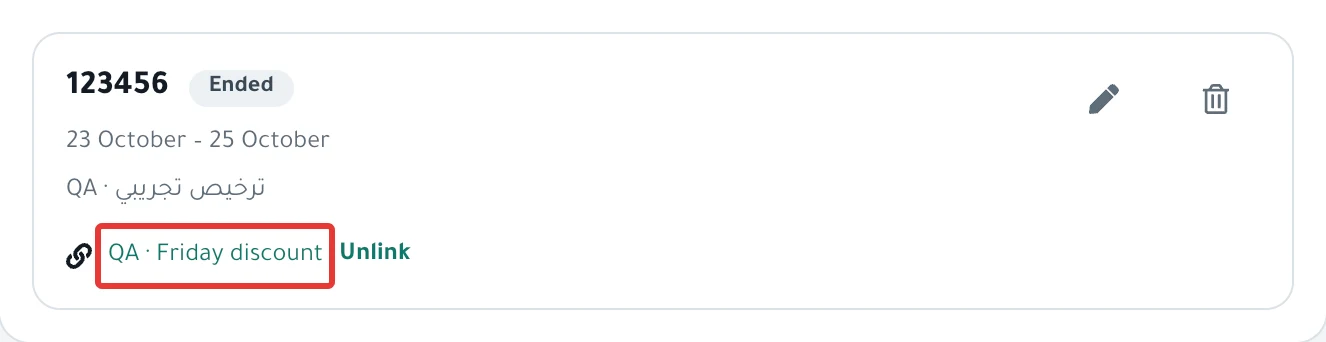
- The permit appears under Your permits with its number, its dates and your note. Its status appears next to the number: Active, Upcoming or Ended.
- After you link it, the schedule name appears under the permit. Click it to open the schedule page.
- On the schedule page, a Permit card shows the permit number and "… to …", with a Permits link. Read Schedule page guide: every button, status and run.
- Nothing changes in your store or in the schedule itself. The link is for your reference only.
Rules
- Enter the number and the dates as they are on your permit. PopAutomate does not check them with the Ministry, and it does not know the limits of your permit. Check its terms yourself.
- PopAutomate works out the status Active, Upcoming or Ended from the dates you entered, in your account time zone.
- At the top of the page there are two cards: Permits this year and Days used. PopAutomate counts them from the dates you entered, for this year. The numbers 3 and 90 next to them are fixed on the page. They do not come from the Ministry.
- Each permit links to one schedule. After you link it, + Link schedule disappears under it until you click Unlink. If you choose the same permit while you set up another schedule, it moves to that schedule and is unlinked from the first one without a warning.
- Under Pick a schedule, you see discount schedules with the Scheduled, Offer Active, Running or Paused status, and any schedule already linked to a permit, whatever its status.
- If you choose a permit while you set up a one-time schedule, and its dates do not cover the schedule, you see "The permit's dates don't cover this schedule's dates." PopAutomate does not compare the dates of repeating schedules.
- A banner at the top of the page may warn about a discount schedule with no permit. It counts the discount schedules that are not linked to any permit. It does not compare dates.
- Unlink removes the link at once, without asking.
- To edit a permit, click the pencil icon next to it, then Save. The message "Permit saved." appears.
- To delete a permit, click the delete icon next to it. In the dialog "Delete this permit?", click Delete. The schedules linked to it stay, without a permit number. You cannot restore a permit after you delete it.
- PopAutomate does not send an alert when a permit is about to end.
- To request a new permit, click Open ministry service under How do I get a new permit?. The Ministry's website opens in a new tab.
- A permit request needs a list of product prices before and after the discount. Prepare it as in Discount price list: prepare it for your permit request.
- For every card and button in Permits, see Permits page guide: discount permits in PopAutomate.
If it did not work
- You see "Enter the permit number." or "Pick the start and end dates." Fill in the empty field, then click Add permit again.
- You see "End date must be after start date." Choose an Ends date after the Starts date.
- You see "Not saved. Try again." Refresh the page, then try again.
- You cannot find your schedule under Pick a schedule: the schedule is not a discount, or its status is Draft, Ended, Completed, Failed or Disabled. Activate it, or set up a discount as in Schedule a discount on Salla and Zid.
- Did you see "The schedule was saved but the permit wasn't linked." after you save a schedule? Open Permits, and click + Link schedule under the permit.
- You have a question about the permit that is not answered here: write to us as in Contact PopAutomate support on WhatsApp
Next
Schedule a discount on Salla and Zid
Or go back to Occasions calendar: set up seasonal offers and permits.
Did this article answer your question?