Set up an offer for an occasion from the calendar
Click Set up an offer on an occasion in Calendar, and PopAutomate opens a discount schedule with the occasion's dates. Choose the products, then click Enable scheduling.
An occasion on its own changes nothing in your store. Your store changes only after you activate the schedule.
Most occasion templates start at midnight. On Zid, a discount that starts between midnight and 3 AM Riyadh time (GMT+3) starts at 3 AM.
Steps
Path: Calendar > the occasion > Set up an offer > Which products? > When? > Review & activate
- Click Calendar in the menu on the left. On your phone, tap Calendar in the tab bar at the bottom.
- Under Upcoming occasions, click the occasion name. Or click the occasion bar on the days of the month. The panel for that day opens.
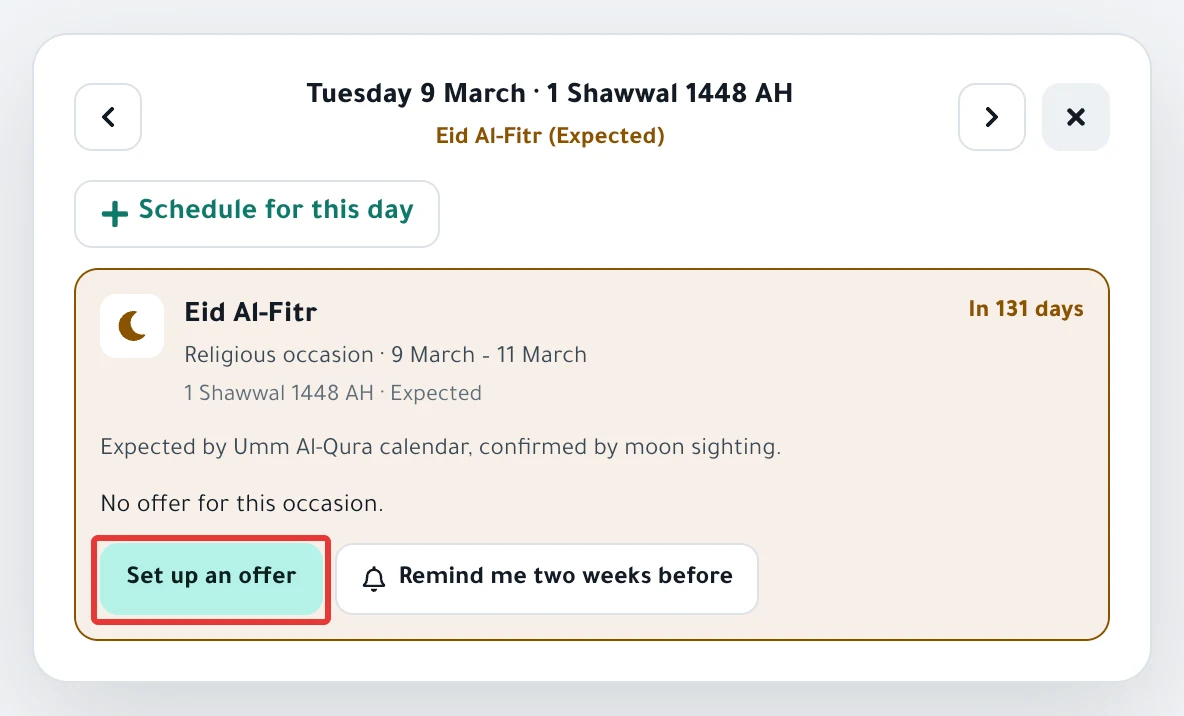
- On the occasion card, click Set up an offer. If you already have a schedule on the occasion, the button reads Another offer.
-
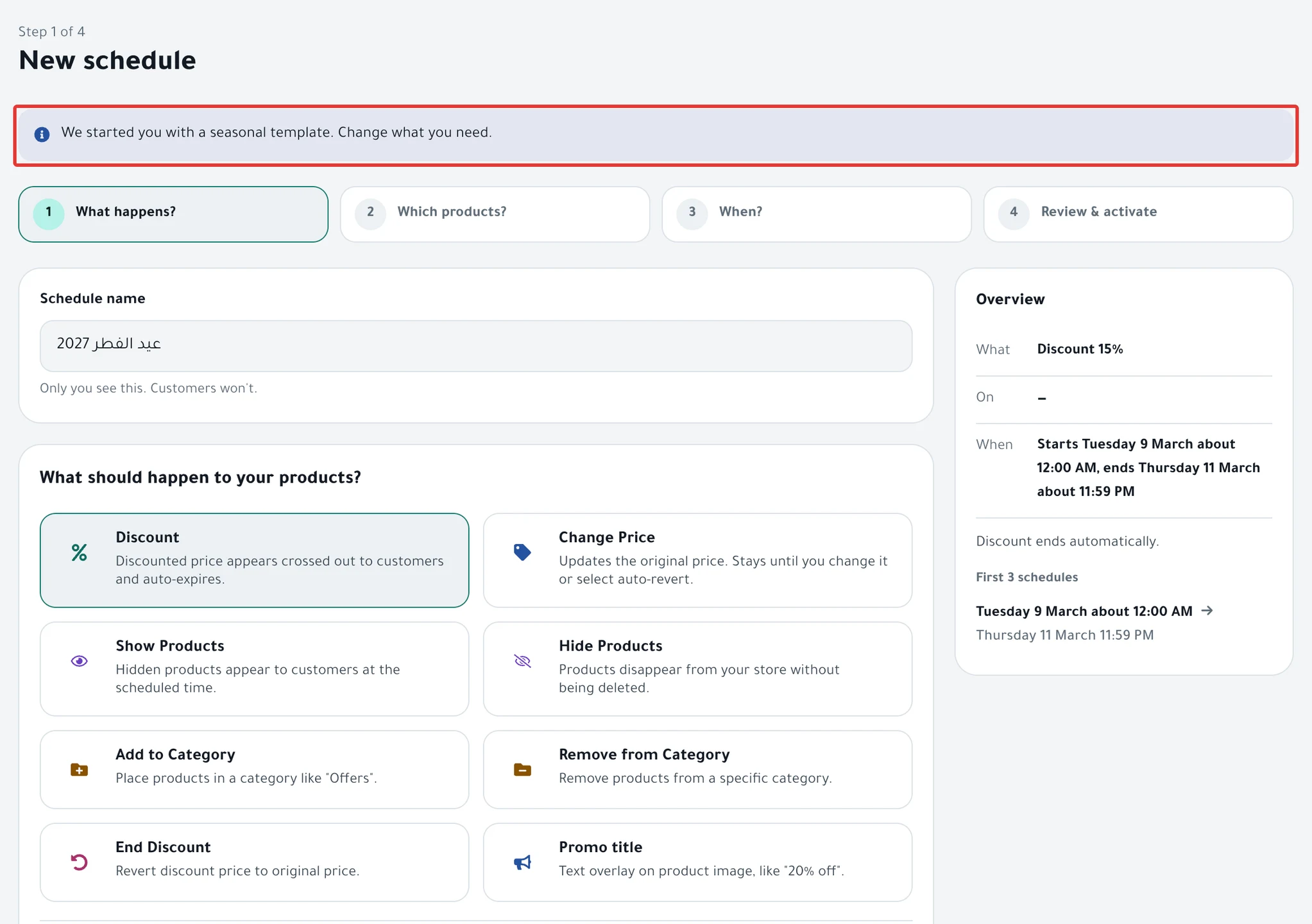
A new schedule opens with the message "We started you with a seasonal template. Change what you need." at the top. Under What happens?, Discount is chosen with a suggested percentage. The schedule is named after the occasion and the year. That name is in Arabic, even when the dashboard is in English; change it in the Schedule name field if you want. Change the percentage too if you want, then click Next.
-
Under Which products?, Categories is chosen, but no category is picked yet. Choose your categories, or choose Products and then the products you want. Then click Next.
To decide which method fits, read Choose discount products: products, categories or CSV?.
-
Under When?, check the start under Starts and the end under Ends. The schedule starts on the first day of the occasion and ends on its last day. Then click Next.
-
Under Review before you turn it on, check the price before and after the discount for the first products, then click Enable scheduling.
What your customers see
- At the start time, PopAutomate starts the run within about a minute.
- Customers see the sale price, with the original price crossed out next to it. The discount ends on its own on the last day of the occasion.
- In Calendar, your schedule appears as a bar over the days of the occasion. Under Upcoming occasions, a check mark replaces the empty circle next to the occasion name.
Rules
- The template does not choose products. You cannot go to the next step until you choose a category or a product. If you click Next with no category chosen, you see "Choose at least one category."
- The template's discount percentage is our suggestion for each occasion. Change it as you like before you activate.
- On Salla, some occasion templates add a ready-made promo title. The prefilled text is in Arabic, even when the dashboard is in English, such as "الجمعة البيضاء" (White Friday) or "عيدكم مبارك" (Eid Mubarak). Delete it if you do not want it, and read Promo title on Salla: add text to your product images.
- The White Friday template starts at 6 PM. All other occasions start at midnight.
- If the occasion started before today, the schedule starts today. If you see "Start date has passed. Pick a future date or "Now".", choose Now or a later hour. With Now, the last button becomes Activate and run now.
- After the occasion ends, the Set up an offer button no longer appears.
- The Schedule for this day button on a day of the occasion opens the same template, but it starts on the day you chose and keeps the same number of days. Check the Ends date, because it may fall after the occasion ends.
- Calendar holds occasions for 2025 to 2027 only. The Hijri (Islamic calendar) dates of occasions are Expected, so check them before you activate. Read PopAutomate calendar occasions: where do they come from?.
- If a product already had an earlier sale price, the occasion discount replaces it. When the offer ends, the earlier sale price does not come back, so set it again yourself in Salla or Zid.
- You also find occasions on Home, under Upcoming occasions. The Set up your offer button there opens the same template.
- Did you run an offer on the same occasion last year? Copy it instead of starting over, as in Copy last year's offer for the same occasion.
- For every part of the Calendar screen, see PopAutomate Calendar guide: occasions and schedules.
If it did not work
- You see "We couldn't open this schedule." Refresh the page and try again. If the occasion has ended, its template does not open.
- The discount did not appear at its start time: A schedule did not run on time: why and how to fix it
- The schedule found no products in the category: Empty category: the schedule found no products in it
- The discount started at a different hour: A discount started or ended at the wrong time
Next
Schedule a discount on Salla and Zid
Or go back to Occasions calendar: set up seasonal offers and permits.
Did this article answer your question?