Copy last year's offer for the same occasion
Click Copy «Schedule name» on an occasion in Calendar, and PopAutomate opens a new schedule with your offer settings from last year and this year's dates.
Steps
Path: Calendar > the occasion > Copy «Schedule name»
- Click Calendar in the menu on the left. On your phone, tap Calendar in the tab bar at the bottom.
- Click the occasion under Upcoming occasions, or click its bar in the calendar. The occasion card opens.
- Click Copy «Schedule name». The button shows the name of your schedule last year between the « ». A new schedule opens with its settings.
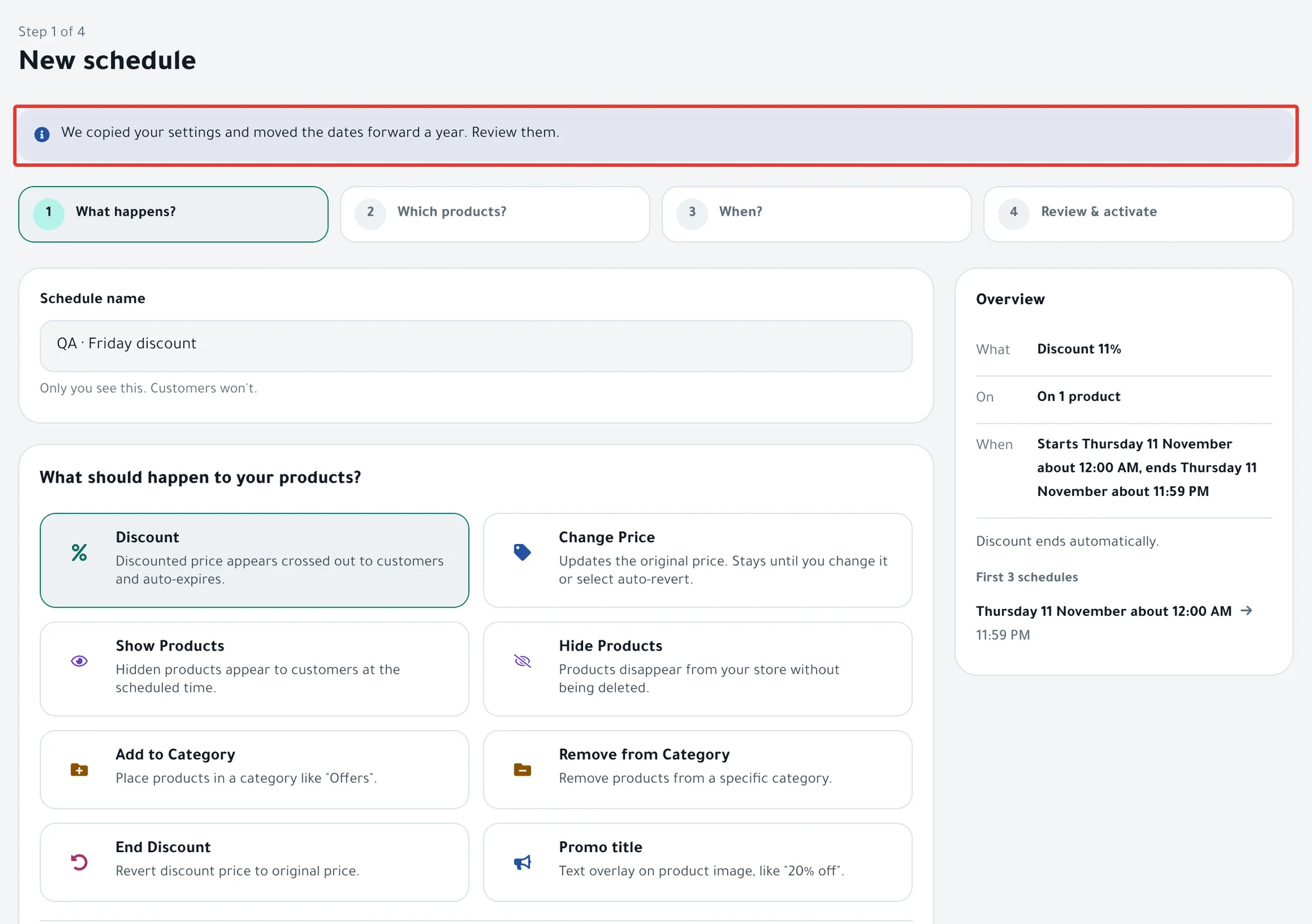
- The message "We copied your settings and moved the dates forward a year. Review them." appears above the schedule. Some settings are not copied, and the dates follow the occasion this year. Check every step.
- Under What happens?, add again what you need from the table below.
- Under Which products?, check the products or categories. If you excluded products last year, click Exclude it on them again.
- Under When?, check Starts and Ends. Make sure the days fall inside the occasion this year.
- Under Review & activate, check the summary, then click Enable scheduling.
| In last year's schedule | What to do in the copy |
|---|---|
| Tiered discount | The copy is a single discount. Add the steps again, as in Tiered discount on Salla and Zid: it grows day by day. |
| Add to «Offers category» during the offer | Turn it on again, as in Offers category on Salla and Zid: group discounted products. |
| Promo title on image | Enter the title again. |
| A percentage or amount price change | The value appears as New price. Choose the percentage or the amount again. |
| Changes stay | The copy starts on Restore it. Change it if you want the change to stay. |
| With an ad | Add the ad date again, as in Time an offer around your Snapchat or Instagram ad. |
| The end hour of a repeat, under To | Choose it again. |
| Discount permit | Choose the Permit number again, as in Ministry of Commerce discount permit: save and link it. |
Result
- After you activate, a new schedule is saved. Last year's schedule stays as it is.
- If last year's number is in the schedule name, PopAutomate changes it to this year's number.
- Nothing changes in your store before the start date.
- If the new schedule's dates fall on the days of the occasion, Copy «Schedule name» disappears after you activate, and the new schedule appears on the occasion card.
Rules
- PopAutomate moves the dates by the number of days between the occasion's start last year and this year. Hijri occasions such as Ramadan and Eid move forward about 10 or 11 days every year.
- If the copied start day falls before today, PopAutomate moves it to today and keeps the length of the offer.
- Some occasion dates are Expected and may change. The copied schedule does not move with them, so check its dates before the occasion.
- Copy «Schedule name» appears only if you had a schedule on the same occasion last year. It disappears if you have a schedule running on the days of the occasion this year, even a repeating one. It does not appear after the occasion ends.
- If you had more than one schedule on the occasion last year, PopAutomate copies the one that started first.
- If the discount value differs between products, every product gets the value of the first product. Check the value under What happens?.
- On Home, Copy last year's offer appears on the occasion card. It opens the copy directly on the Review & activate step, so go back to the earlier steps and check them.
If it did not work
- You do not see Copy «Schedule name»? You may have a schedule running on the days of the occasion this year, and its name appears on the occasion card. Or you had no schedule on it last year.
- You see "We couldn't open this schedule."? Last year's schedule may have been deleted. Reload the page and try again.
- The promo title does not appear in the copy? Enter it again, as in Promo title on Salla: add text to your product images.
- The categories are right, but you want to exclude products? Read Exclude products from a discount: skip some in a category.
Next
Check the discount value and date in Schedule a discount on Salla and Zid, and the products in Choose discount products: products, categories or CSV?.
To copy a schedule with its dates as they are, use Duplicate, as in Duplicate a schedule: same settings, new dates.
To prepare for an occasion from scratch, read Set up an offer for an occasion from the calendar, or go back to Occasions calendar: set up seasonal offers and permits.
Did this article answer your question?