Move an offer to another day from the calendar
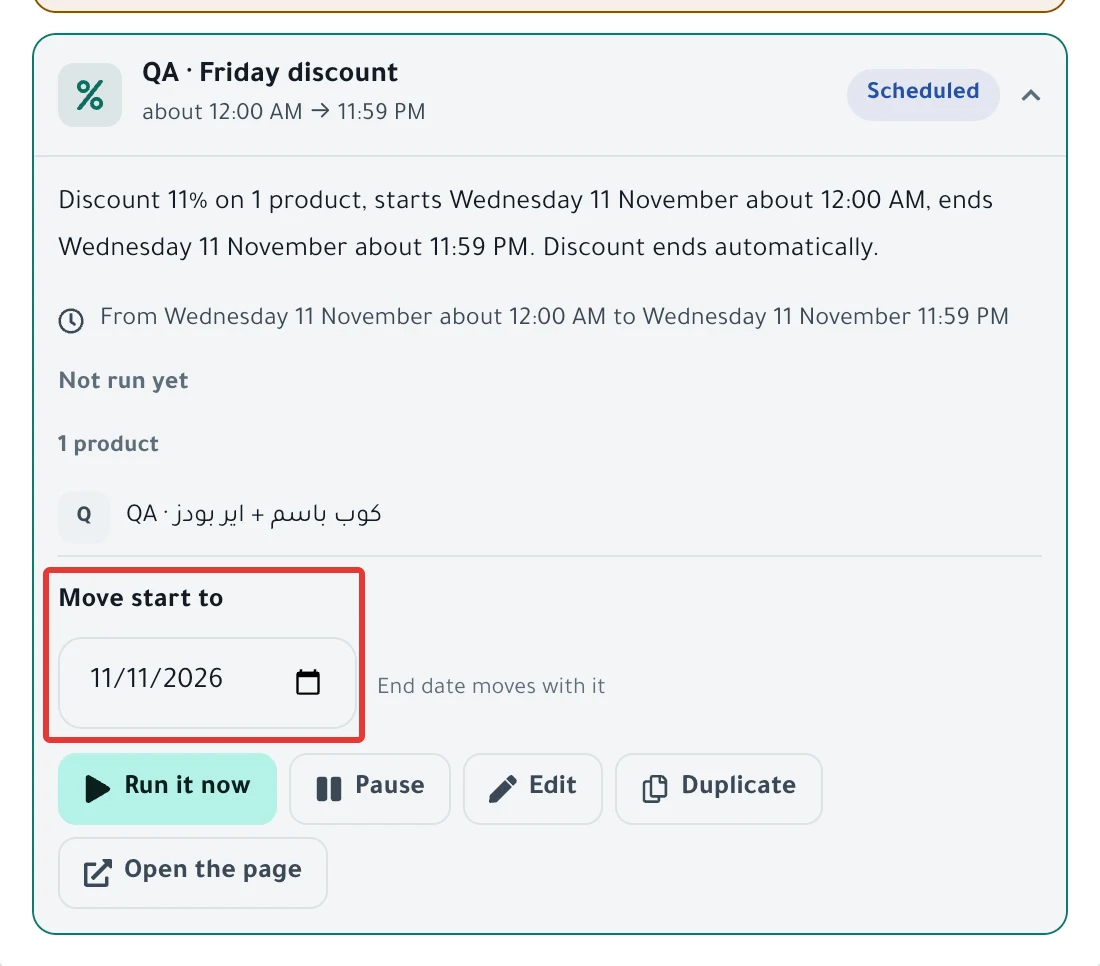
Open the schedule in Calendar and choose a new day under Move start to. The start and end dates move together, and the time of day stays the same.
Steps
Path: Calendar > the schedule's day > Move start to
- Click Calendar in the menu on the left. On your phone, tap Calendar in the tab bar at the bottom.
- Click the schedule's bar on its start day. The panel for that day opens, with the schedule card open in it.
- If the card is closed, click the schedule name to open it.
- Under Move start to, click the date and choose the new day. Next to it you see "End date moves with it".
- The message "Moved to …" appears with the new date, and the panel jumps to that day.
- To go back to the earlier date, click Undo in the same message before it disappears.
Result
- Only the start day changes. The start time stays as you set it.
- If the schedule has an end date, it moves by the same number of days and keeps the same time. The length of the offer does not change.
- Nothing changes in your store now. The offer starts on the new date.
- A Paused schedule stays paused after the move. Click Activate to run it on its new date.
- The move appears in the Activity log: "Moved «…» from … to …".
Rules
- You can move only a one-time schedule with the Scheduled or Paused status. The field does not appear for a repeating schedule.
- You cannot move an offer that has started. If the status is Offer Active or Running, the field does not appear.
- You cannot move to a day that has passed, or to today if the start time has passed.
- A schedule that starts Now cannot be moved from Calendar, because it has no start day.
- To change the start time or any other setting, click Edit on the same card, as in Edit a saved schedule: change the time, value or products.
- PopAutomate does not check the other schedules on the new day. If the card has a line that starts with "touches", two schedules change the same products on the same day. Click "What happens when they overlap?", or read Two schedules on the same products: what happens?.
- If you linked the schedule to a discount permit, PopAutomate does not check that the new date falls inside the permit's dates. Check the permit's dates under Permits, as in Ministry of Commerce discount permit: save and link it.
If it did not work
- You do not see Move start to on the card? The schedule repeats, or its status is not Scheduled or Paused. To see its status, read Status guide: what schedule and run statuses mean.
- You see "That day has passed. Pick a future day."? Choose a day after today, or a day when the start time has not passed yet.
- You see "We couldn't move the schedule."? The run may have started, or the status may have changed. Reload the page, check the status, then try again.
- The offer started at a different hour than you expected? Read A discount started or ended at the wrong time.
Next
After you move the date, check the offer's products and value in Schedule a discount on Salla and Zid.
To prepare for a whole occasion, read Set up an offer for an occasion from the calendar.
Or go back to Occasions calendar: set up seasonal offers and permits.
Did this article answer your question?