Occasion reminders: get an email two weeks before
Click Remind me two weeks before on an occasion in Calendar, and you get one email about two weeks before it, so you can set up your offer in time. Nothing changes in your store. PopAutomate emails to Salla and Zid stores are in Arabic.
Steps
Path: Calendar > the occasion > Remind me two weeks before
- Click Calendar in the menu on the left. On your phone, tap Calendar in the tab bar at the bottom.
- Under Upcoming occasions, click the occasion name. The panel for its day opens.
- On the occasion card, click Remind me two weeks before.
- The message "We'll email you two weeks before «Occasion name»." appears, and the button becomes We'll remind you two weeks before.
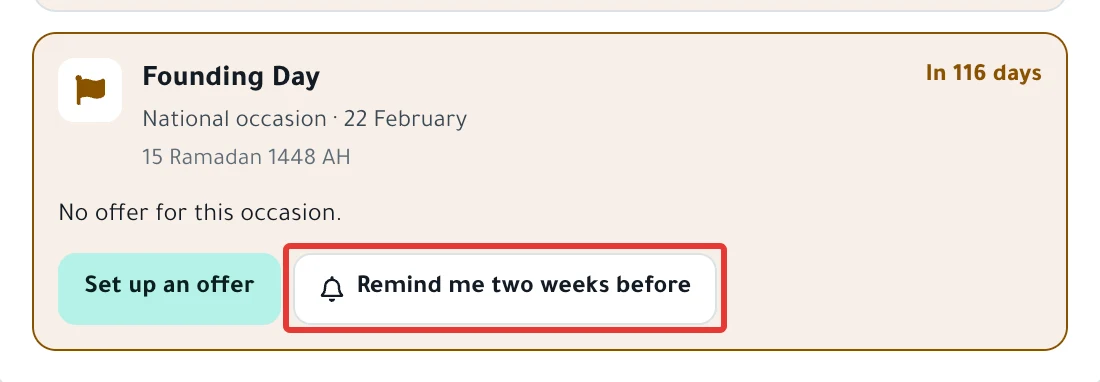
To cancel the reminder, click We'll remind you two weeks before again. The message "Reminder removed." appears.
Result
- You get one email 12 to 14 days before the occasion starts, at about 9 AM Riyadh time (GMT+3).
- The subject has the occasion name and the days left, such as "White Friday is 14 days away".
- The email gives the start date of the occasion and has a Set up an offer button. The button opens a new schedule from the occasion template, as in Set up an offer for an occasion from the calendar.
- Nothing changes in your store, and no schedule is created until you set it up and activate it yourself.
Rules
- The reminder arrives by email only. PopAutomate does not send it on WhatsApp or by text message, and it does not appear in the bell.
- You get the reminder only if the Email switch is on under Settings > Notifications. Read PopAutomate email alerts: choose what you get.
- Click the button while the occasion is still at least 12 days away. The email is sent when the occasion is 12 to 14 days away, so if fewer than 12 days are left when you click, you do not get an email.
- The button does not appear if you have a schedule on the days of the occasion, or if the occasion has ended.
- If you ask for the reminder and then set up a schedule on the days of the occasion, the button disappears. You can no longer cancel the reminder, and the email still arrives on time.
- The reminder covers the occasion you clicked, in its own year only. For the same occasion next year, click the button on it again.
- PopAutomate counts the days in your account time zone, which you set in Settings.
If it did not work
- You do not see the Remind me two weeks before button: you have a schedule on the occasion, or the occasion has ended. Open the occasion from Set up an offer for an occasion from the calendar to see its schedule.
- You see "We couldn't do that. Try again." Refresh the page and click the button again. If it keeps happening, write to us as in Contact PopAutomate support on WhatsApp.
- You did not get the email: check that Email is on in PopAutomate email alerts: choose what you get, and that you clicked the button when the occasion was still at least 12 days away. For other causes, see Not getting PopAutomate alert emails: why and how to fix.
Next
Set up an offer for an occasion from the calendar
Or go back to Occasions calendar: set up seasonal offers and permits.
Did this article answer your question?