Not getting PopAutomate alert emails: why and how to fix
Open Settings, then Notifications, and check that Email is on and the alert type is on. Then look in your spam folder.
What you see
- A schedule failed, or finished with problems, and no email came.
- Your store was disconnected, and the email "انقطع الربط مع سلة، جدولاتك موقوفة" ("Salla disconnected: your schedules are paused") did not come. PopAutomate emails to Salla and Zid stores are in Arabic.
- The Sunday summary did not come, or an occasion reminder you asked for.
- The alert appears in the bell, but there is no email for it.
Why it happens
PopAutomate sends an alert email only when Email is on and the alert type is on. Some emails are sent only once, or only when there is something to report. If your account email is not valid, no alert email reaches you at all.
Fix
Turn on Email in Settings
- Open Settings from the menu on the left. On your phone, tap the account button at the top (the circle with your first initial), then Settings.
- Click Notifications.
- Under How should we reach you?, turn on Email.
If Email is off, you see "Email is locked, so you won't be notified if a schedule fails. Alerts stay in the bell.", and the other switches are grayed out.
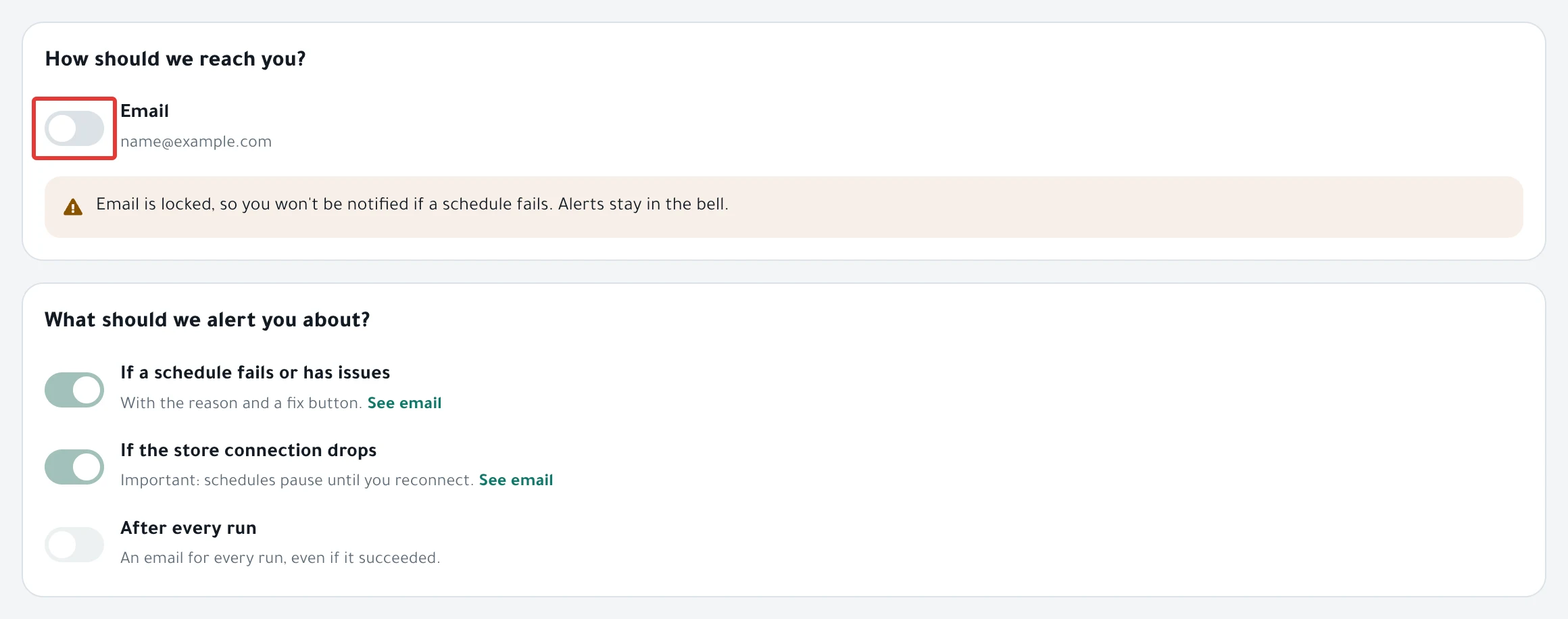
Turn on the alert type you want
- Open Settings, then Notifications.
- Under What should we alert you about?, turn on the alert that did not reach you.
- Under Summary, choose Daily or Weekly. With None, you get no summary.
What each alert sends:
- If a schedule fails or has issues: for a run that failed, or a run where only some products changed.
- If the store connection drops: "Important: schedules pause until you reconnect."
- After every run: an email even if every product changed. This alert is off at the start.
Details in PopAutomate email alerts: choose what you get.
Look in your spam folder
- Search your spam folder, and the promotions tab if your inbox has one, for the schedule name or "PopAutomate".
- If you find the email there, mark it as not spam so future emails land in your inbox.
- To make sure PopAutomate sent it, open Activity log and click Emails. Every alert email PopAutomate sent appears there as "We sent an email:" followed by its subject. The "✅ نجحت حملتك" email ("Your campaign succeeded") does not appear there. Emails is explained in Activity log: see what happened in your account.
If the email appears in Activity log but you cannot find it in your mailbox, contact support as described at the end of this page.
The disconnect email comes only once
- PopAutomate sends the disconnect email once, at the moment the connection drops. It does not repeat it while the store stays disconnected.
- If the connection dropped before 18 October 2026, 11:22 PM Riyadh time (GMT+3), this email will not come. Check the banner at the top of the page.
- Schedules due while the store is disconnected send no failure email, because those runs do not happen.
PopAutomate does not send the disconnect email to Zid stores.
- Reconnect your store. Follow Store disconnected and schedules paused: how to reconnect.
- In Settings > Notifications, turn on If the store connection drops, so you get the email if the connection drops again.
No email when there is nothing to report
- The weekly summary arrives on Sunday at 9 AM in your account time zone. The daily summary arrives every day at 9 AM.
- PopAutomate sends no summary if no schedule ran, nothing needs you, and no schedule is due in the next 7 days.
- It also sends none if your account has no schedule at all.
- Each run sends one alert email at most.
- A run where every product changed sends no alert email, unless you turned on After every run.
- An occasion reminder arrives about two weeks before the occasion starts. If you click Remind me two weeks before when the occasion is less than 12 days away, the reminder will not come.
- If you want an email after every run, open Settings > Notifications and turn on After every run.
- For an occasion reminder, click Remind me two weeks before more than 12 days before the occasion starts.
Read about the bell and the summary in PopAutomate alerts: the bell, email and summary, and about what the summary contains and when it comes in Weekly summary: what you get every Sunday. How to ask for a reminder: Occasion reminders: get an email two weeks before.
Check your account email
- Open Settings > Notifications. The address PopAutomate sends to appears under Email.
- If it is wrong or old, you cannot change it in Settings: "You can't change it here. Contact us if you need another email."
- Click Support and send us the right email address.
If you changed your email in Salla or Zid after you installed PopAutomate, your PopAutomate account email does not change. If you get the "✅ نجحت حملتك" email, your account email is correct. Notifications does not control that email.
Still stuck?
Click Support in the menu on the left, or on your phone tap Contact us in the account menu, and send:
- The email you are waiting for, such as a failed schedule or the summary.
- The schedule name and the run time, if there is one.
- A screenshot of the Notifications tab.
The full steps are in Contact PopAutomate support on WhatsApp.
Next: PopAutomate email alerts: choose what you get, or go back to Fix a PopAutomate problem: where did you see it?.
Did this article answer your question?