CSV file rejected or has rejected rows: causes and fixes
Make sure the file is a CSV, has the product column and the price column with their exact names, and that every price is a number greater than zero. Then upload it again.
PopAutomate checks the file the moment you upload it under Which products?. If the problem is in the whole file, PopAutomate rejects it. If it is in some rows, PopAutomate accepts only the valid rows.
What you see
- After you upload the file, a red message appears under the upload area, such as "Upload a CSV file only." or "The file is missing columns. It needs: …".
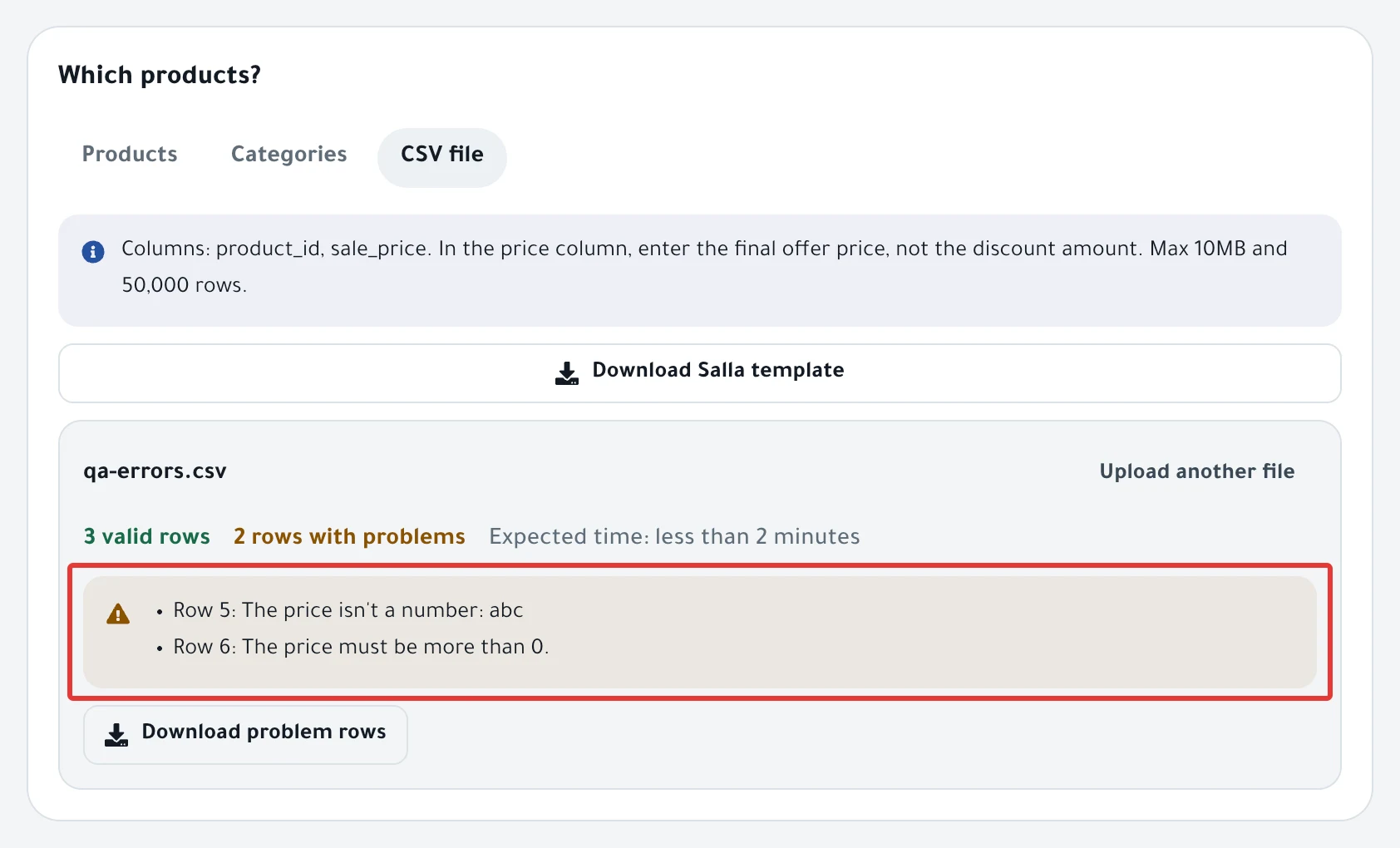
- Or the file name and the row count appear, with something like "3 rows with problems" and a list of them.
- Or a yellow or red message under the file says some products are not in your store or some prices are above the current ones.
- Or you click Next and see "The file has no valid rows."
Why it happens
PopAutomate checks the file in two stages:
- The whole file: its type, size and columns. If it fails here, PopAutomate does not accept it.
- Each row: the product ID and the price. A row with a problem is left out of the schedule, and the valid rows stay.
Then PopAutomate checks a sample of the file's products in your store, not every product.
Fix
The file is not a CSV or is empty
| Message | Fix |
|---|---|
| "Upload a CSV file only." | Save the file as CSV from your spreadsheet program, and check that its name ends in .csv. |
| "The file is empty." | The file has no content, or its first line is empty. The first line must be the column names. |
| "We couldn't receive the file. Upload it again." | Upload the file again. |
| "We couldn't read the file." | Open the file, save it again as CSV, then upload it. |
An Excel file in .xlsx format is not accepted. Save it as CSV first.
Column names are missing or different
If you see "The file is missing columns. It needs: …", the first line of the file does not have the required columns with their English names.
| Column | Salla | Zid |
|---|---|---|
| Product | product_id | sku |
| Price for a discount | sale_price | sale_price |
| Price for a price change | new_price | new_price |
- Click Download Salla template above the upload area, or Download Zid template if your store is on Zid. The template has the right column names.
- Copy your data under these columns, and do not change their names.
- Upload the file again.
Upper or lower case does not matter, and neither do spaces around the name. If you see "We ignored these columns: …", the file is accepted and PopAutomate does not read the other columns.
For a discount, enter the final offer price in sale_price, not the discount amount.
The file is over the limit
If you see "The file is bigger than 10 MB. Split it into smaller files.", split the products into two or more files and create a schedule for each file.
If the file has more than 50,000 rows, you see "The file has more than … rows. We took the first … only." Rows after the limit are left out. Move the rest to a second file and a second schedule.
Rows with problems
The first 5 rows with problems appear with their number and reason, such as "Row 5: The price isn't a number: abc". To see every row, download them as a file with the steps below.
| Reason | Fix |
|---|---|
| "… is empty." | Enter the product ID or SKU in this row, or delete the row. |
| "The price isn't a number: …" | Enter the price as digits only, with no "SAR" or any other text. |
| "The price has more than 2 decimals: …" | Enter at most two digits after the decimal point, such as 49.90. |
| "The price must be more than 0." | Enter a price greater than zero. |
Arabic digits such as ٤٩٫٩٠ are accepted. Write the decimal with a point or with ٫, never with a comma. PopAutomate removes commas without a message, so 49,90 becomes 4990.
To fix the rows quickly:
- Click Download problem rows. A file downloads with the number of each row that has a problem.
- Fix those rows in your original file.
- Click Upload another file and upload the fixed file.
If you leave the rows as they are and activate, the schedule runs on the valid rows only. If you see "Duplicate rows: … We kept the last value for each product.", PopAutomate takes the last line for each product. Delete the extra lines if the last value is not the one you want.
Products not in your store
If you see "We checked … products from the file and … aren't in your store: …", those IDs do not match a product in your store.
- Open the product in your Salla or Zid dashboard and copy its ID from there. On Salla, enter the product ID. On Zid, enter the SKU.
- Fix the IDs in the file, then click Upload another file.
PopAutomate checks up to 50 products from the file: the first 25, and 25 others at random. So wrong IDs outside the sample may remain, and the message does not list them. Check the whole file.
A product that does not exist fails at run time, as in Some products did not change after a schedule ran.
The offer price in the file is above the current price
For a discount, if you see "The sale price is above the current price for … products: …", the offer price in the file is higher than the product's price in your store.
- Fix
sale_pricefor those products: enter the final offer price, and make it lower than their current price. - Upload the fixed file with Upload another file.
This check uses the same sample, not the whole file. Check the prices in every row before you activate. If a wrong price appears after the run, read Wrong discount price in your store: causes and fixes.
Two more messages have nothing to do with the price. They appear when you click Next, because the file cannot be used with the option you chose:
| Message | Fix |
|---|---|
| "A tiered discount can't come from a CSV file." | Turn off the Tiered discount switch under What happens?, or choose Products instead of the file. |
| "CSV prices are new prices, not increases or decreases." | For a price change, choose New price under What happens?. In new_price, enter the new price itself. |
Upload the file again
PopAutomate keeps the uploaded file for up to 30 minutes while you set up the schedule. It can expire sooner. If it expires and you then click Enable scheduling, PopAutomate takes you back to Which products? and shows a message.
- Click Upload another file and upload the same file.
- Click Next until you reach the Review & activate step, then click Enable scheduling right away.
In this case PopAutomate does not save the schedule, so you do not need to delete anything.
If you open an older CSV schedule with Edit, you see "Upload the file first." If you upload a new file, an error message appears and PopAutomate does not accept the new file. Delete the schedule with Delete, and create a new schedule with the file.
Still stuck?
Click Support in the menu on the left. On your phone, tap Contact us in the account menu. The steps are in Contact PopAutomate support on WhatsApp. Send:
- The file itself, or its first 5 rows.
- The exact text of the message.
- Whether your store is on Salla or Zid.
Next: Upload a CSV with a price per product on Salla and Zid, or go back to Fix a PopAutomate problem: where did you see it?.
Did this article answer your question?