Discount price list: prepare it for your permit request
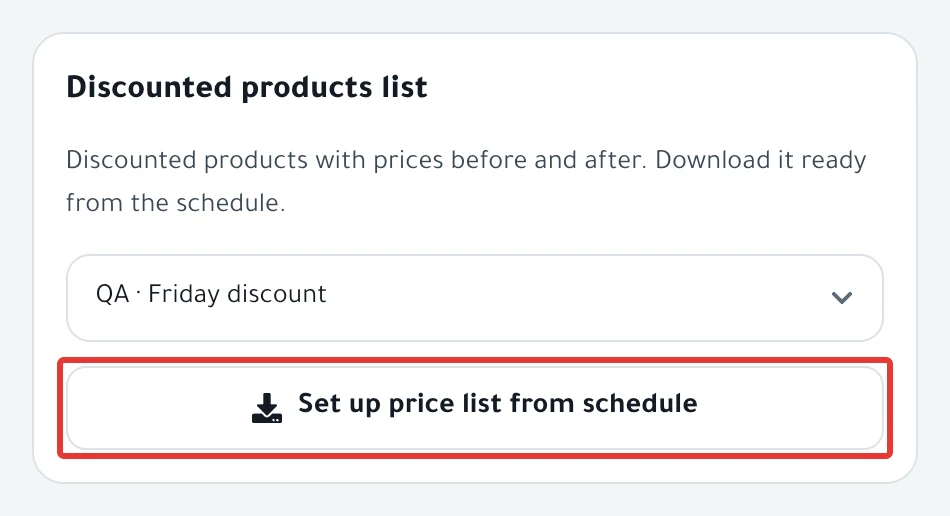
Choose the discount schedule in Permits, and click Set up price list from schedule. A file downloads with the prices of its products before and after the discount.
Steps
Path: Permits > Discounted products list > Set up price list from schedule
- Open Permits from the menu on the left. On your phone, tap the account button at the top (the circle with your first initial), then Permits.
- The Discount permits page opens. Scroll to the Discounted products list card. On your phone, it is under the list of permits.
- Click Pick a schedule, and choose the discount schedule you are requesting the permit for.
- Click Set up price list from schedule. The button does not work until you choose a schedule.
- The message "We've downloaded your price list. Upload it in your permit request." appears, and a file downloads with a name that starts with
price-list-. - Open the file and check the names and prices before you upload it.
- Upload the file in your permit request on the Ministry of Commerce website. It goes in the step "Set the period and upload the list of discounted products with prices before and after."
Result
The file has one row per product and four columns:
| Column | What it holds |
|---|---|
| Product | The product name in your store. |
| SKU | The product SKU. It may be empty. |
| Before | The product's original price in your store now. |
| After | The price after the schedule's discount. |
- Prices have two decimals, such as
100.00. - The file is a CSV, so open it in a spreadsheet program such as Excel.
- Nothing changes in your store or in the schedule.
Rules
- PopAutomate builds the file from the schedule's settings and your store's prices at the moment you click. If you change prices afterward, build the file again.
- Products you excluded do not appear in the file.
- With a Tiered discount, PopAutomate calculates After with the first step's discount only. Enter the largest discount yourself if your permit asks for it.
- A product has one row, with its original price, even if its options have different prices.
- For a schedule on categories, the file lists only the first 20 products of each category. If a category is larger, add the rest of its products yourself.
- If the discount value differs between products in an old schedule, PopAutomate calculates every product with the value of the first product.
- The list shows discount schedules with the Scheduled, Offer Active, Running or Paused status. Drafts and schedules that have ended do not appear, unless they are linked to a permit.
If it did not work
-
You see "We couldn't build the list for this schedule."? The schedule may be on a CSV file, or have no products.
PopAutomate cannot build the list for a schedule on a CSV file. The price file you uploaded for the schedule has only a
product_idcolumn (Salla) or askucolumn (Zid), and asale_pricecolumn. The permit asks for the price before and after. Add each product's name and its price before the discount to a copy of that file, then upload the copy in your permit request. The price file columns are explained in Upload a CSV with a price per product on Salla and Zid. -
If you see the message for a schedule on products or categories, the connection to your store may have been lost. Reload the page and try again.
-
You do not see the schedule under Pick a schedule? It may be a draft, it may have ended, or it may not be a discount. If it is a draft, activate it first, as in Schedule a discount on Salla and Zid.
-
The After price is not what you expected? Check the discount value in the schedule, and read Wrong discount price in your store: causes and fixes.
Next
After the permit is issued, save its number under Permits and link it to the schedule. Read Ministry of Commerce discount permit: save and link it.
To choose the discount products from the start, read Choose discount products: products, categories or CSV?.
Or go back to Occasions calendar: set up seasonal offers and permits.
Did this article answer your question?