Choose discount products: products, categories or CSV?
Choose Products for a fixed list, Categories for a category whose products PopAutomate matches again at every run, or CSV file for a different price for each product.
You find all three in the Which products? step when you create a schedule.
Example
Say you have a "Perfumes" category with 30 products, and you want a discount on it every Friday.
| Method | What happens |
|---|---|
| Products | You choose the 30 products yourself. The schedule changes only those products. If you add a new perfume later, it is not part of the offer. |
| Categories | You choose "Perfumes". At every run, PopAutomate gets the category's products from your store, so a new perfume joins the offer on its own. |
| CSV file | You upload a file with the ID and the price of each product, and each product gets its price from the file. |
Products
- Type in the Search by name or SKU box and check your products. The count appears in "Selected: …".
- The list is fixed: the schedule changes only the products you chose.
Categories
- Choose one category or more. A line like "In the selected categories now 30 products. We'll match them again at each run." appears under them.
- "We'll match them again at each run" means PopAutomate does not save the products now. It gets the category's products from your store at the start of each run.
- A product you add to the category later joins the offer on its own. A product you take out of the category is not changed at the next run.
- To leave one product of the category out, click Exclude it next to it. Put it back brings it back. You can exclude up to 1,000 products.
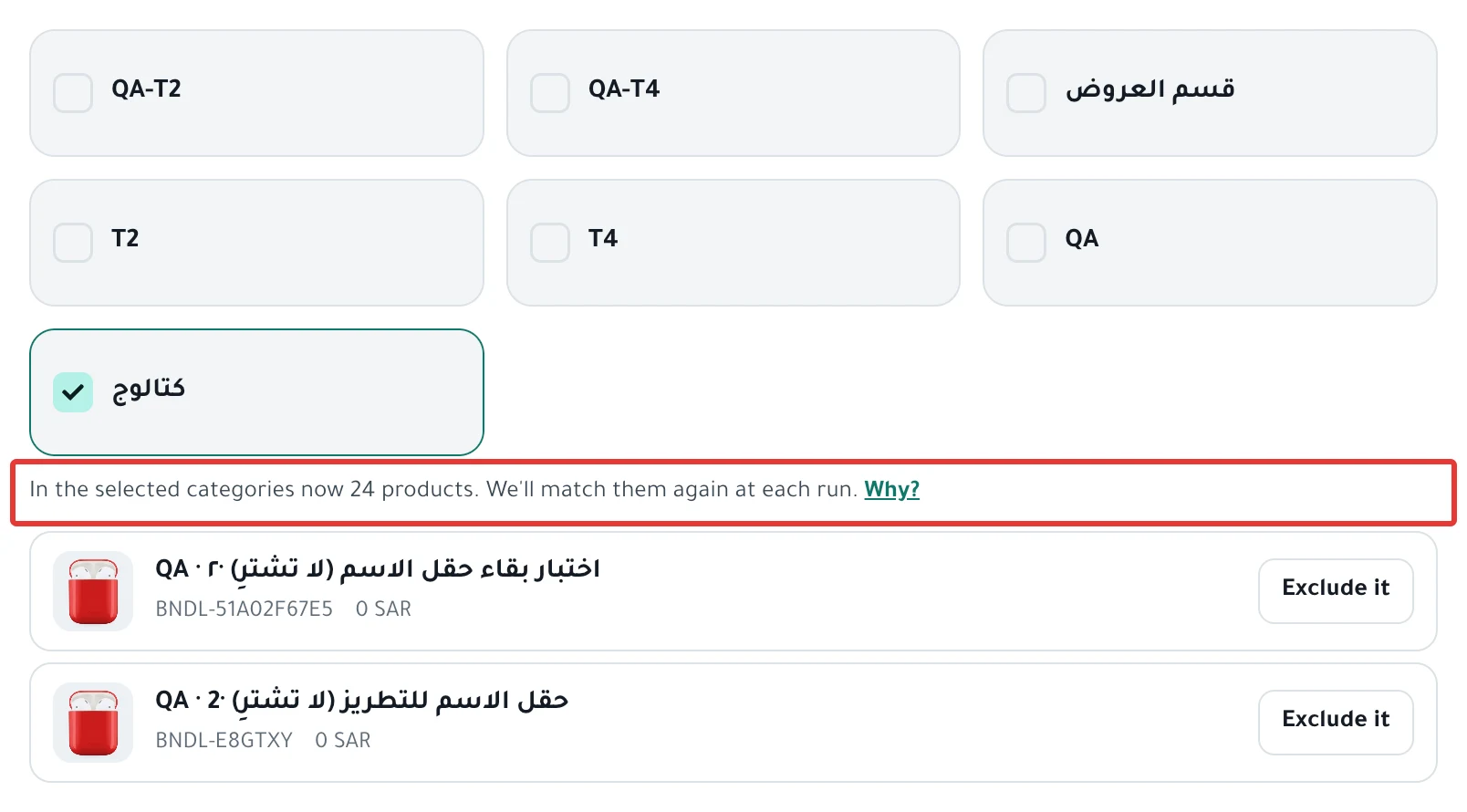
On Zid
On Zid, the count line may show the number of all products in your store, not the number of products in the category. The run changes only the category's products.
CSV file
- The CSV file tab appears only with Discount and Change Price.
- The ID column is
product_idon Salla andskuon Zid. The price column issale_pricefor a discount andnew_pricefor a price change. - The price in the file is the final price, not the discount amount or the increase.
- A file can be up to 10 MB and 50,000 rows, and it does not work with Tiered discount.
When it happens
- The preview in the schedule shows the category's products now, and they may change before the run.
- PopAutomate matches the products at the start of each run: on the first date and on every repeat.
- A product that is in two categories you chose together changes twice in the same run. So do not use Change Price with a percentage or an amount on categories that share products, because the increase or decrease applies twice.
- Whole store in Quick offer is different: it saves your store's products at the moment you save, and it does not add new products later.
What you can do
- Schedule a discount on Salla and Zid
- Repeat an offer every week on Salla and Zid
- The schedule found no products in the category? Read Empty category: the schedule found no products in it.
Go back to Schedule Salla and Zid products: discount, price, visibility.
Did this article answer your question?