Time an offer around your Snapchat or Instagram ad
In When?, choose With an ad and enter the time your ad goes live. The offer starts the number of hours you set before the ad, and ends the number of hours you set after it.
PopAutomate does not publish your ad. You publish it as usual. PopAutomate only changes the products in your store around the ad time.
Steps
Path: Schedules > New schedule > What happens? > Which products? > When? > With an ad
-
Click New schedule, or the + button in the bottom bar on your phone. Choose what you want, such as Discount, then choose the products. For these two steps, read Schedule a discount on Salla and Zid.
-
In When?, choose With an ad.
-
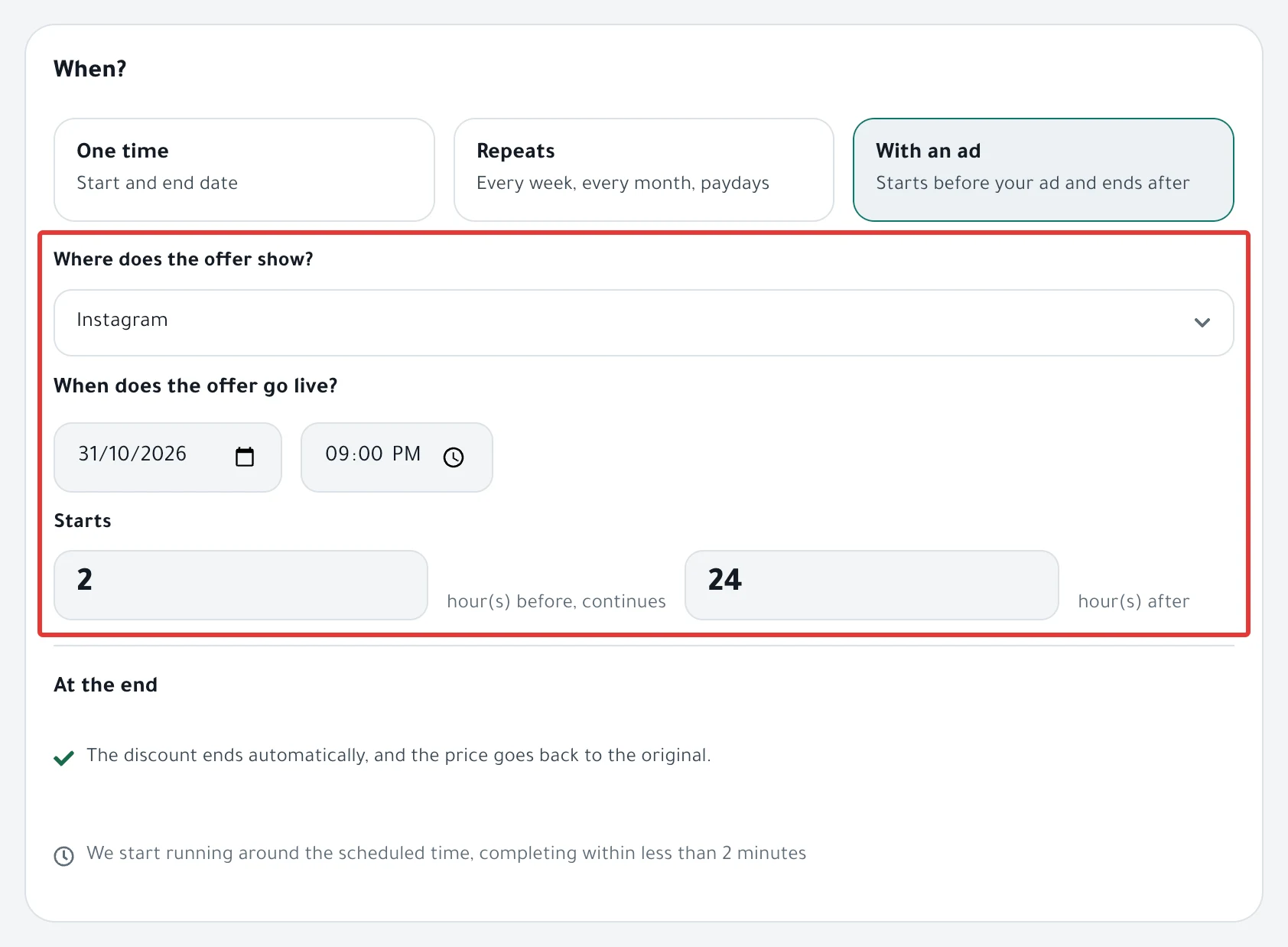
In Where does the offer show?, choose Instagram, TikTok, Sponsored ad or Other. For a Snapchat ad, choose Other.
-
Under When does the offer go live?, choose the date and time your ad goes live.
-
In the Starts field, enter the number of hours before the ad, from 0 to 168. In the field after it, enter how many hours the offer continues after the ad, from 1 to 720. Then click Next.
For example, your ad goes live on Thursday at 9 PM, Starts is 2, and the offer continues 24 hours after the ad. The offer starts on Thursday at 7 PM and ends on Friday at 9 PM.
- Check the schedule, then click Enable scheduling.
Result
PopAutomate saves the schedule as a one-time offer, from the start of the offer to its end. At the start it changes your products, and at the end the discount ends on its own.
If you chose something other than a discount, such as hiding products, choose Restore it or Changes stay under At the end.
To see what changed in each run, read Schedule run results: what changed in your store?.
Rules
- An offer with an ad does not repeat. For an ad every week, create one schedule for each ad, or read Repeat an offer every week on Salla and Zid.
- The ad time must be in the future. If it has passed, you see "Announcement date has passed."
- If you do not choose where the ad shows, you see "Pick where the ad shows."
- If the ad is soon and its start time has already passed when you activate, the offer starts within about a minute.
- With Discount, the discount can grow during an offer with an ad, as in Tiered discount on Salla and Zid: it grows day by day.
- The hours are whole numbers, with no fractions.
If it did not work
- A red message appeared and the schedule was not activated: Can't activate a schedule: what the red message means
- The offer started or ended at a different hour: A discount started or ended at the wrong time
- Your store is on Zid and the offer started at a different hour: A discount started or ended at the wrong time
Next
Schedule run results: what changed in your store?
Or go back to Schedule Salla and Zid products: discount, price, visibility.
Did this article answer your question?