Promo title on Salla: add text to your product images
Enter text like "20% off" that appears on your product images at the time you set. Choose the Promo title card, or add the title to a discount or a price change.
A promo title on the image is available on Salla only. On Zid, the card and the switch appear disabled, and the app shows "Promo title on image only shows in cart." There, "cart" means Salla.
Steps
Path: New schedule > What happens? > Which products? > When? > Review & activate
-
Click New schedule in the menu on the left. On your phone, tap the + button in the tab bar at the bottom.
-
Enter a name in Schedule name.
-
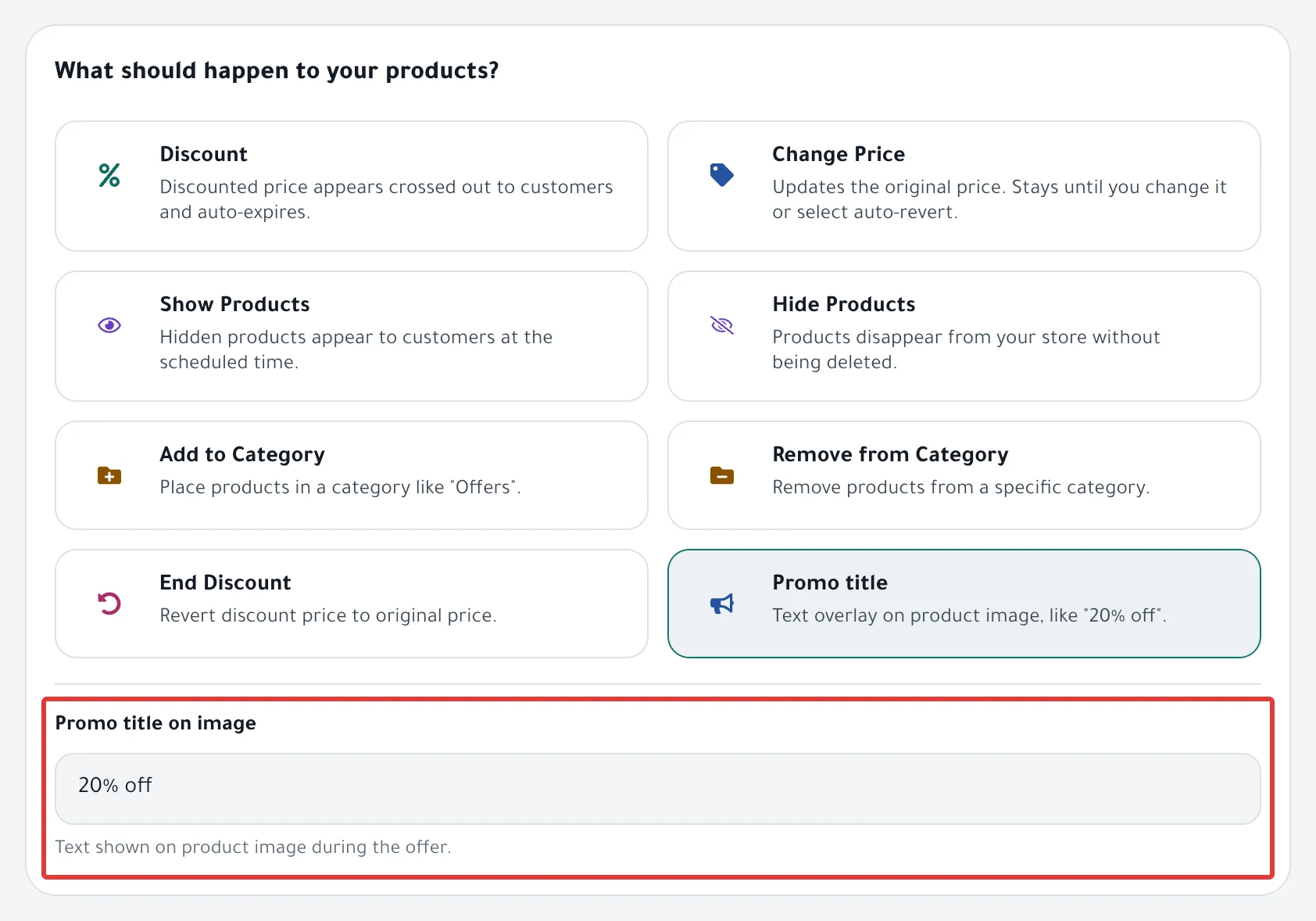
Under What happens?, choose the Promo title card to add the title alone, without changing the price. Or choose Discount or Change Price, then turn on Add a promo title on the image.
-
In the Promo title on image field, enter the text, such as "20% off". The limit is 255 characters.
If you leave the field empty, you see "Enter the promo title." and you cannot go to the next step.
-
Click Next, then choose the products under Which products?. Read Choose discount products: products, categories or CSV?.
-
Under When?, choose One time or Repeats, and set the time.
-
With the Promo title card, choose Restore it under At the end so the product gets its old title back at the end time. This needs an End date. Or choose Changes stay to keep the title on the image until you change it yourself in Salla.
With Discount, the old title comes back on its own when the discount ends, except in the two cases under Rules below. With Change Price, the title follows your choice under At the end.
-
Under Review before you turn it on, check the text, then click Enable scheduling.
Result
- The text appears on the image of every product you chose, within about a minute of the start time.
- "Actual appearance varies by your store theme."
To follow the run, read Schedule run results: what changed in your store?.
Rules
-
The new title replaces any title already on the product.
-
No card removes a title on its own. To make the title disappear when the schedule ends, choose Restore it, or remove the title from the product in Salla.
-
If you choose a category instead of products, the title appears on the products in that category at run time.
-
The title may stay on the image after the discount ends in two cases. The first is a Repeats discount with All day. The second is a one-time discount that ends at 12:00 AM.
For a repeating discount, turn off All day and choose a time in To before 11:59 PM. For a one-time discount, choose an end time other than 12:00 AM. Or remove the title from the product in Salla after the last day.
If it did not work
- Your store is on Zid: The promo title does not show on the product image on Salla
- The run did not finish, or it finished with problems: The promo title does not show on the product image on Salla
- The run finished and the title does not appear: The promo title does not show on the product image on Salla
- The title disappeared, or it stayed after the end: The promo title does not show on the product image on Salla
Next
Schedule run results: what changed in your store?
Or go back to Schedule Salla and Zid products: discount, price, visibility.
Did this article answer your question?