Two schedules on the same products: what happens?
If two schedules change the same product at the same time, PopAutomate runs them one after the other. The change from the schedule that ran last is the one that stays in your store.
Example
Sarah has two schedules on the same perfume on the same day: "Friday discount" at 20% and "Payday discount" at 30%. "Friday discount" ran first, then "Payday discount".
Sarah's customers see only the 30% discount. The two discounts do not add up, because PopAutomate calculates each discount from the product's original price.
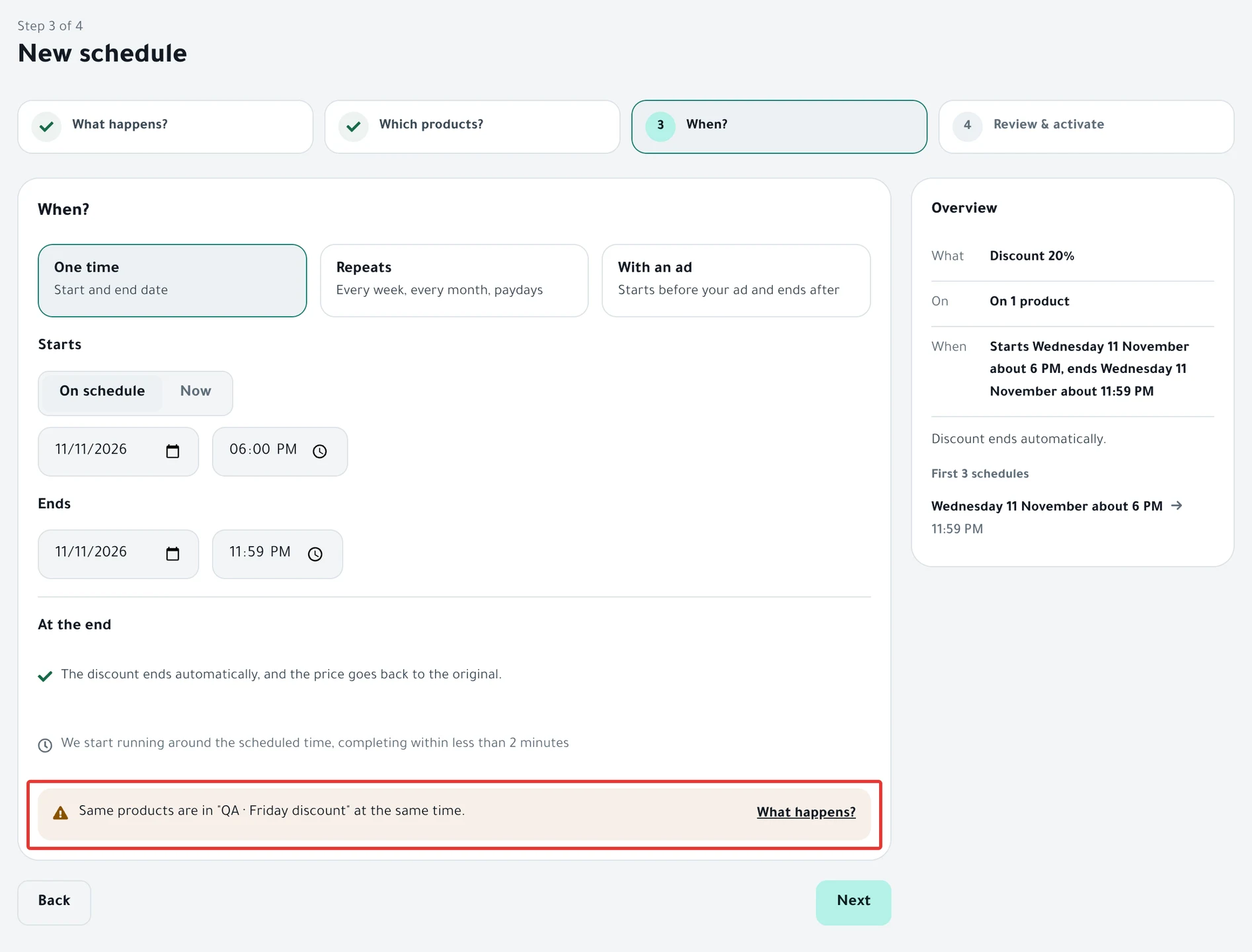
When it happens
When you set up a schedule, PopAutomate compares it with your active schedules. If their times overlap and they share at least one product, you see this on the When? step and on the Review & activate step: "Same products are in "…" at the same time."
- PopAutomate compares products with products, and categories with categories.
- You get no warning if one schedule is on products and the other is on a category that holds the same product.
- PopAutomate does not compare with paused schedules or drafts.
- If two schedules overlap on one day, Calendar shows "Some days have two schedules for the same products. What does that mean?" above the days of the month. Here paused schedules count too, but drafts do not.
- When you open a schedule in the calendar, you see a line like "touches 3 products with «…» on the same day", with "What happens when they overlap?" next to it.
The warning does not stop you from saving or activating, and it does not stop the run.
When the schedules run:
- Only one run happens on your store at a time. The second schedule waits until the first one finishes, then starts on its own.
- If you chose Restore it on the first schedule, PopAutomate does not restore a product that the second schedule changed after it. That way the second change stays.
- Even in one schedule, a product that is in two categories you chose changes twice. Details are in Wrong discount price in your store: causes and fixes.
What you can do
If you see the warning and do not want the two schedules to overlap, do one of these:
- Change the time of one of them so they no longer overlap.
- Remove the shared products from one of them.
- Pause one of them with Pause on its page.
If both schedules ran and you see a price you did not expect in your store, follow Wrong discount price in your store: causes and fixes.
To set up a new discount with a time that does not overlap another schedule, follow Schedule a discount on Salla and Zid.
All the articles on tracking your schedules are in Track your schedules: pause, end or restore your products.
Did this article answer your question?