Share card: an offer image and text for your customers
Click Share card on the schedule page, and PopAutomate prepares an image of the offer and text that you post for your customers yourself.
Steps
Path: Schedules > the schedule > Share card
- Click Schedules, then click the name of a discount or price change schedule. On your phone, Schedules is in the bottom bar.
- Click Share card among the buttons at the top of the page.
- Choose the image format: Square post or Story. A preview of the card appears.
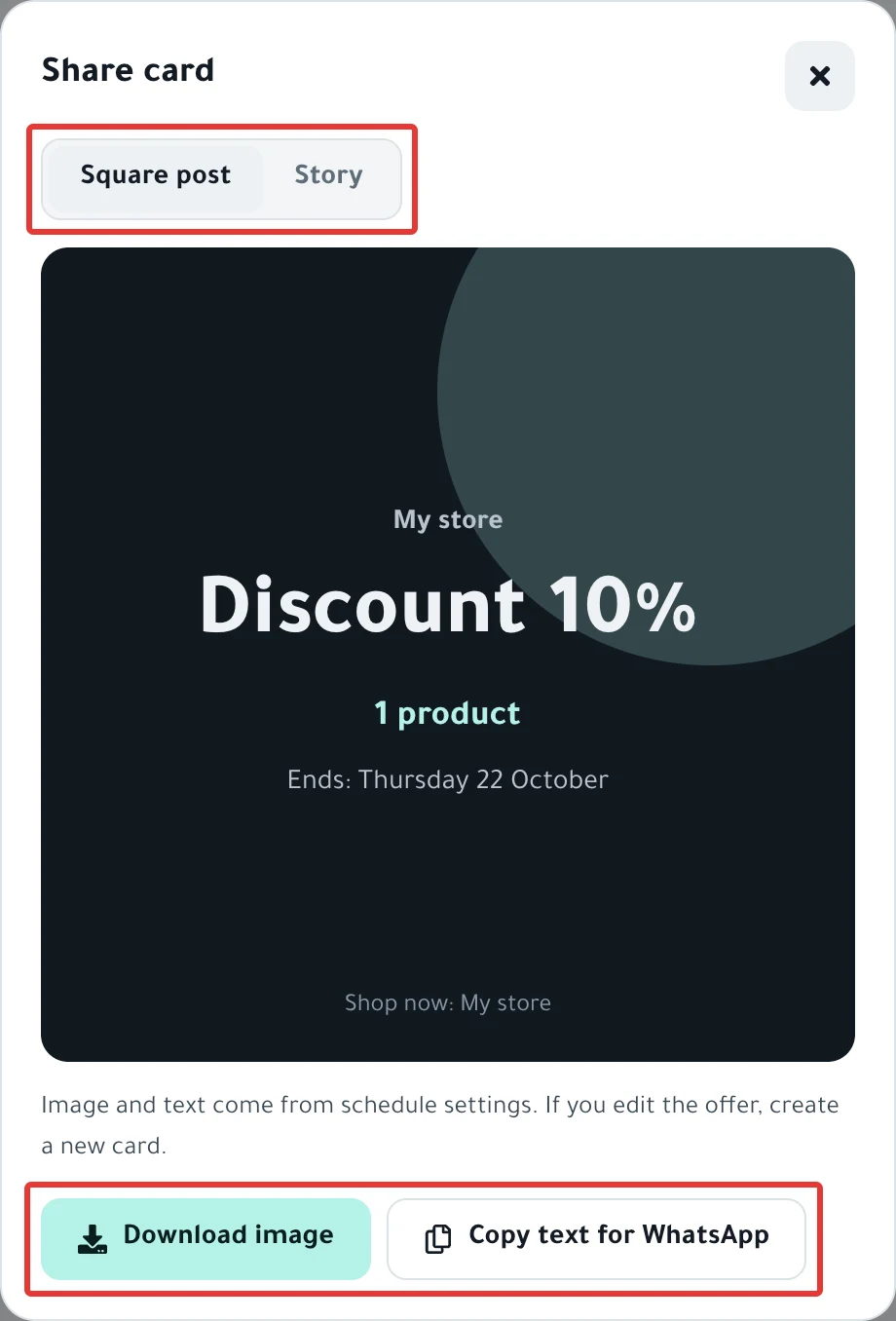
- To save the image, click Download image.
- To copy the text, click Copy text for WhatsApp, then paste it into a chat or a post.
- Post the image or the text on your accounts, or send them to your customers.
Result
- After Download image you see "Image downloaded." The image is in your device's downloads.
- After Copy text for WhatsApp you see "We copied the text. Paste it on WhatsApp or Snap."
What the card holds, from top to bottom:
| Part | What appears |
|---|---|
| Top of the card | The domain of your store, without the rest of the link |
| The offer | For example, "Discount 20%". If the discount differs from one product to another: "Special prices", or "New prices" for a price change |
| Products | The number of products, for example "12 products", or "on selected products" |
| The date | The end of the offer, "Ends: …", or the schedule's date if it has no end |
| Promo title | If you entered one in the schedule |
| Bottom of the card | "Shop now: …" with your store's domain |
The copied text has the same content: the offer and the number of products, the date, the promo title and "Shop now: …".
Rules
- The button appears only on Discount and Change Price schedules.
- PopAutomate builds the card on your device. It publishes nothing, and nothing changes in your store.
- "Image and text come from schedule settings. If you edit the offer, create a new card."
- The button works in any schedule status, even before the offer starts. Check the date before you post.
- The card has dark colors, whether the app is in light or dark mode.
- Sizes: Square post is 1080 × 1080, and Story is 1080 × 1920.
If it did not work
- The Share card button does not appear: the schedule is not a discount or a price change. It may be, for example, a schedule that shows or hides products or changes categories.
- You clicked Copy text for WhatsApp and saw "We couldn't do that. Try again.": your browser did not allow copying. Try again, or use Download image.
- The card says "Special prices" instead of the discount percentage: the discount is different from one product to another. Write the percentage yourself in your post if you want.
- The promo title does not appear on the card: you did not enter one in the schedule. For details, see Promo title on Salla: add text to your product images.
Next
Schedule run results: what changed in your store?
Every button on the schedule page is in Schedule page guide: every button, status and run. All the articles on tracking your schedules are in Track your schedules: pause, end or restore your products.
Did this article answer your question?