PopAutomate Calendar guide: occasions and schedules
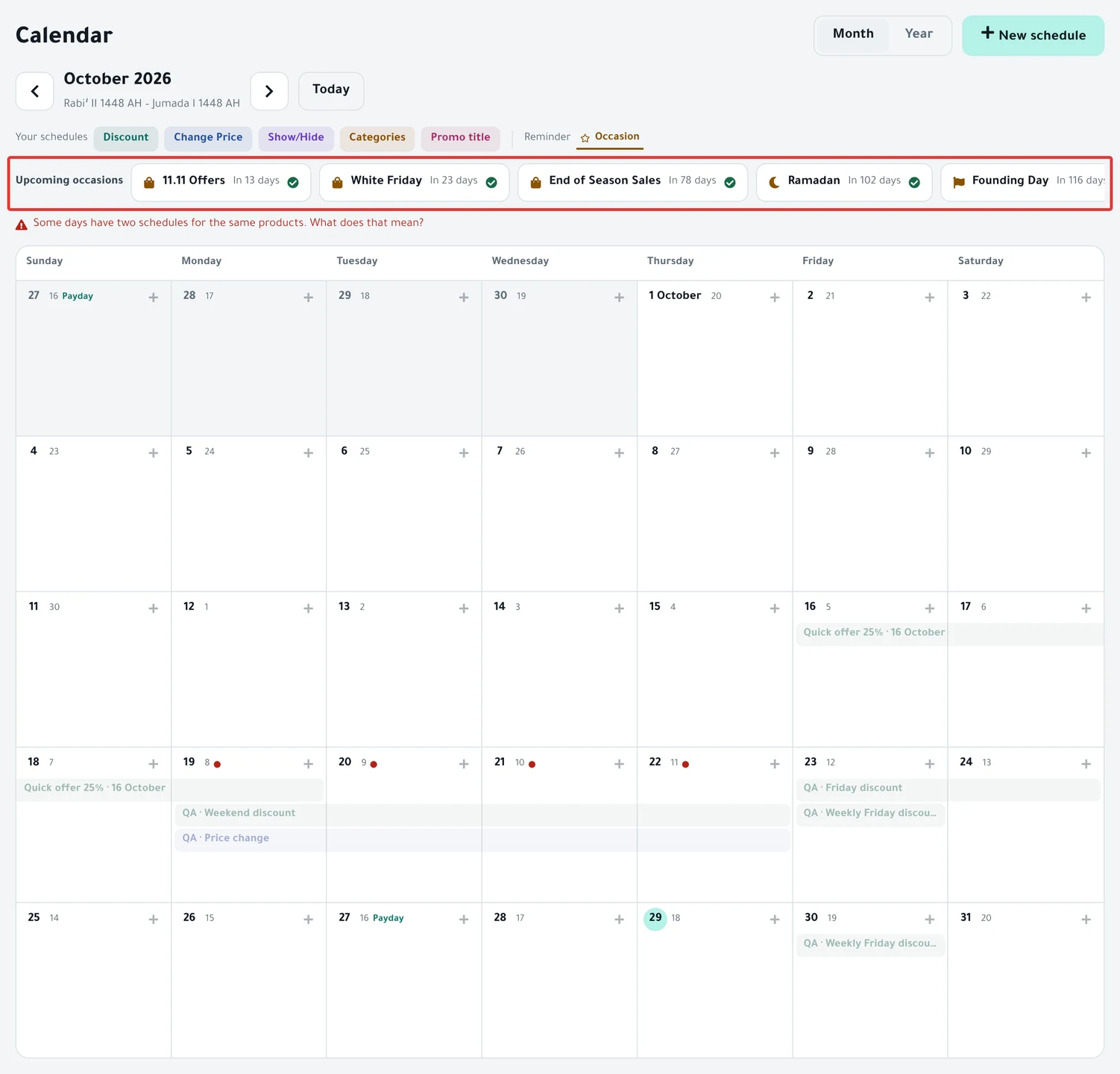
The Calendar shows your schedules as colored bars on their days, and upcoming occasions with a star. Click any day to see its schedules and occasions in a small panel.
Open it from the menu on the left. On your phone, it is in the tab bar at the bottom. The Calendar does not change anything in your store on its own. The other screens are in PopAutomate screen guide: every screen and button.
Month and year
Above the calendar, choose Month or Year. The year view shows 12 months, starting from the month you are viewing. Click a month to open it.
Use the arrows to move between months, and click Today to return to the current month. On a computer, the Hijri date (the Islamic calendar date) appears under each day number.
Above the calendar, under the month name, is the color key: Your schedules with a color for each schedule type, then Reminder with the Occasion star. A day has room for 4 bars on a computer and 3 on a phone. The rest are summed up in a link such as "+2 also" (the app's wording for "+2 more").
Drafts do not appear in the Calendar. A paused schedule stays visible, so check its status in the day panel before you rely on the bar.
A repeating schedule that you ended may still appear on upcoming days. Open the day panel and check its status: if it reads Ended, it will not run.
Upcoming occasions and where they come from
Above the calendar, the Upcoming occasions strip lists up to 12 occasions. Each one has a green check if it has a schedule, or an empty circle if you have not set anything up for it.
Click Where from? to open the Where do occasions come from? help panel. In short:
- National occasion: Founding Day (22 February) and Saudi National Day (23 September), for example. Their dates are fixed.
- Religious occasion: Ramadan, the two Eids, Day of Arafah and Islamic New Year, calculated from the Umm Al-Qura calendar.
- Shopping season: White Friday (the Gulf's name for Black Friday) and Back to School, for example. These are usual market days, and each store sets its own dates.
An occasion is only a reminder for you. Nothing changes in your store until you create a schedule for it. The Calendar has occasions for 2025, 2026 and 2027 only.
How PopAutomate picks the occasions and their dates is in PopAutomate calendar occasions: where do they come from?.
Payday
On a computer, a Payday mark appears on the 27th of every month, the day government salaries are paid. It is only a reminder and does not run anything.
Clicking the mark opens nothing. For an offer that repeats on paydays, choose Payday (25th–28th) in a repeating schedule. Read Repeat an offer every week on Salla and Zid.
Overlap dot
A red dot on a day means "Two schedules on the same products" on that day. Above the calendar, a link reads "Some days have two schedules for the same products. What does that mean?"
The dot is only a warning: it does not stop any schedule. "The second waits for the first to finish; the one that runs last is what stays." In the day panel, the schedule card shows a line that starts with "touches", with the number of products and the name of the other schedule, and a "What happens when they overlap?" link.
What happens to the two schedules is in Two schedules on the same products: what happens?.
Schedule for this day
On a computer, every day has a small + button, and the day panel has a Schedule for this day button. Both open a new schedule that starts on that day. If the day has passed, it starts today. If the day has an occasion, the panel button starts from the occasion's template, as Set up an offer does, with the start on the day you chose.
If the day is empty, the panel reads "No schedules for this day." and "Tap «Schedule for this day» to add an offer."
Expected
Next to the date of an occasion whose days are not confirmed, you see "Expected", with a line under it that explains why. For religious occasions it reads "Expected by Umm Al-Qura calendar, confirmed by moon sighting.", so the date may shift by a day. Check your schedule's dates if the official announcement changes.
For White Friday and End of Season Sales you read "Each store sets its own dates. These are the usual market days." For Back to School you read "Approximate. Check Ministry of Education calendar."
Set up an offer
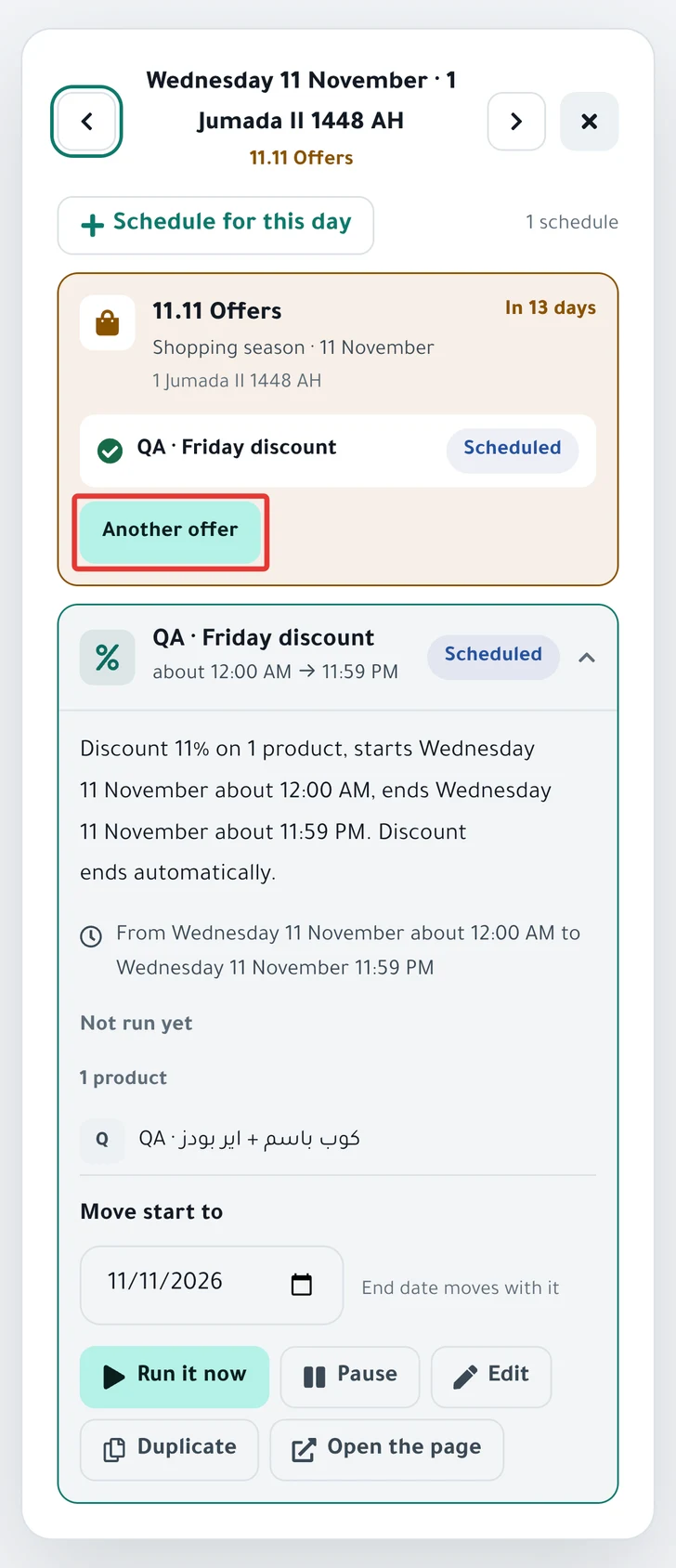
The occasion card has a Set up an offer button. It reads Another offer if the occasion already has a schedule. It opens a one-time discount schedule over the days of the occasion, with "We started you with a seasonal template. Change what you need." at the top.
The name comes from the occasion, and the discount percentage from the template. No products are chosen, so choose the categories or products yourself before you activate. Read Schedule a discount on Salla and Zid.
If the occasion has no schedule, the card reads "No offer for this occasion." If it has one, the schedule appears on the card with a check and its status. Click it to open its card in the day panel. The card's buttons disappear after the occasion ends.
The steps are in Set up an offer for an occasion from the calendar.
Copy last year's offer
If you had a schedule for the same occasion last year and the occasion has no schedule this year, a Copy «Schedule name» button appears, with last year's schedule name between the « ». It opens a copy of that schedule on this year's dates.
Check the dates in every step, because Hijri occasions fall several days earlier each year. Some settings do not come with the copy, such as the tiered discount steps and the excluded products, so check them before you activate.
Remind me two weeks before
If the occasion has no schedule, Remind me two weeks before appears. Click it: the button changes to "We'll remind you two weeks before", and a message reads "We'll email you two weeks before «Occasion name»." Click it again to cancel, and "Reminder removed." appears.
You get one email about two weeks before the occasion starts, at 9 AM Riyadh time (GMT+3). Nothing changes in your store.
Click it while the occasion is still at least 12 days away. The email is sent when the occasion is 12 to 14 days away, so if fewer than 12 days remain when you click, the email never arrives. The Email switch in the Notifications tab must also be on. Read PopAutomate email alerts: choose what you get.
The steps are in Occasion reminders: get an email two weeks before.
Move start to
On a schedule card in the day panel, you find Move start to with "End date moves with it". It appears only for a one-time schedule with the status Scheduled or Paused.
Choose the new day. The start moves, and the end moves by the same number of days. "Moved to" and the new date appear, with an Undo button.
If you choose a past day, or today after the start time has passed, the panel reads "That day has passed. Pick a future day." If it reads "We couldn't move the schedule.", the date did not change.
The other buttons on the card, such as Open the page, work like the buttons on the schedule page. If you see "We couldn't do that. Try again.", open the schedule from Schedules and try there. Read Schedule page guide: every button, status and run.
Did this article answer your question?