When? step: schedule timing in PopAutomate
When? is the third step of a schedule. Choose one of three: One time, Repeats or With an ad. Then choose what happens At the end.
All times are in your account time zone in PopAutomate. The other screens are in PopAutomate screen guide: every screen and button.
One time
The One time card reads "Start and end date". The schedule runs once.
- Starts: On schedule with a date and time, or Now. The default is tomorrow at 6:00 PM.
- Ends: a date and time. The default is 3 days later at 11:59 PM.
- The End date switch appears when the end is optional. An end date is required with Discount, and when you choose Restore it.
If the start time has passed, the screen says "Start date has passed. Pick a future date or 'Now'." If the end comes before the start, it says "End date must be after start date." If you choose Restore it with no end date, it says "To restore products you need to set an end."
Repeats
The Repeats card reads "Every week, every month, paydays". Choose how the schedule repeats:
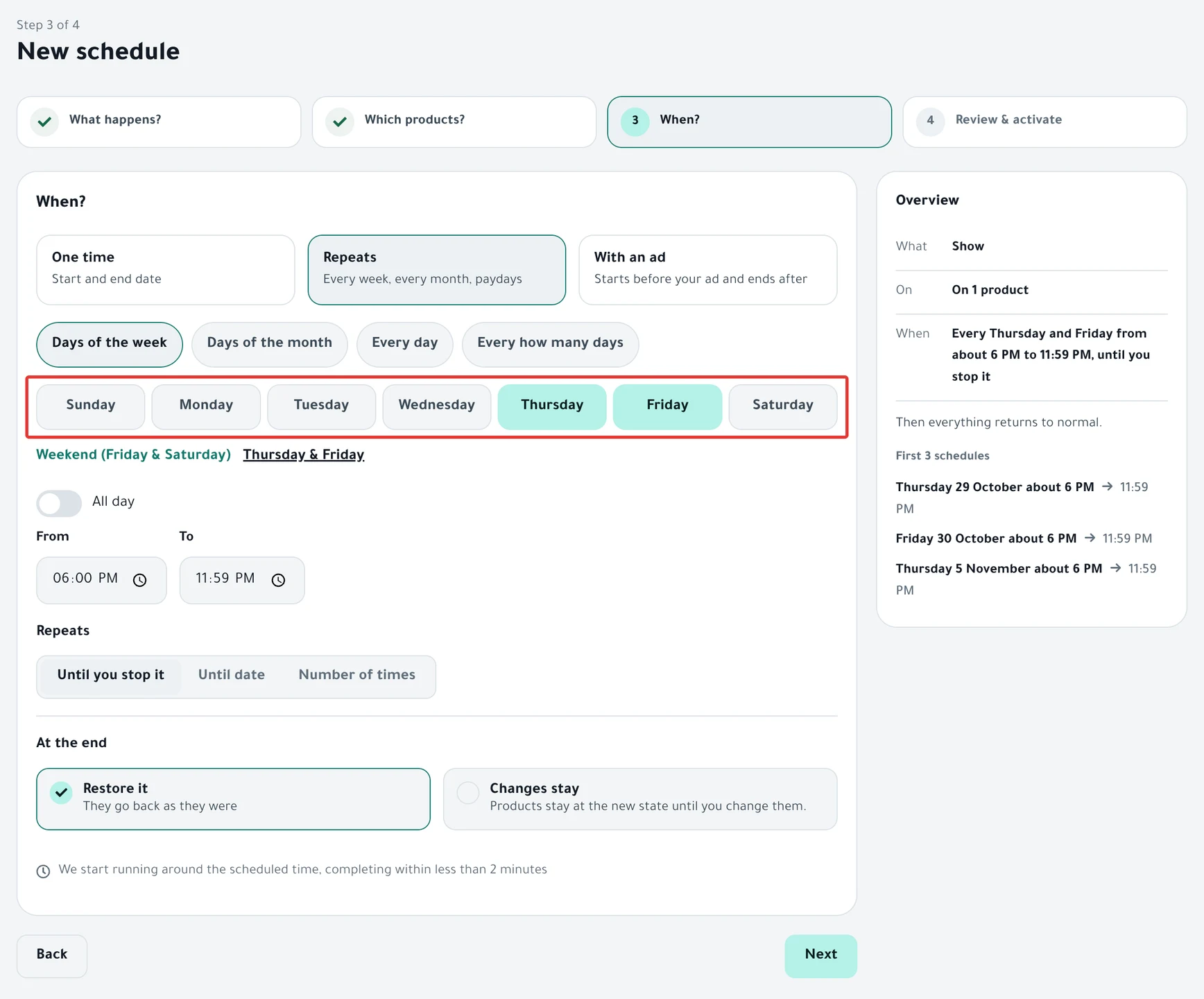
- Days of the week: check the days, or click Weekend (Friday & Saturday) or Thursday & Friday. Thursday and Friday are chosen by default.
- Days of the month: check days from 1 to 31. Payday (25th–28th) is chosen by default. If you check day 29, 30 or 31, a note reads "Short months: days 29–31 run on the last day of the month."
- Every day.
- Every how many days: enter a number from 2 to 365 in the Every field, followed by "days".
Then set the time: turn on All day, or set a From time and a To time. The default is 6:00 PM to 11:59 PM.
Under Repeats, you also choose when the schedule stops repeating:
- Until you stop it: the schedule keeps repeating until you stop it.
- Until date: the default is 30 days from today. If the date has passed, the screen says "'Until' date has passed."
- Number of times: enter a number, followed by "times". The default is 4.
If you choose no days, the screen says "Choose at least one day." or "Choose at least one date."
The full steps are in Repeat an offer every week on Salla and Zid.
With an ad
The With an ad card reads "Starts before your ad and ends after". The offer is built around the time of your ad:
- Where does the offer show?: Instagram, TikTok, Sponsored ad or Other. If you choose none, the screen says "Pick where the ad shows."
- When does the offer go live?: the date and time your ad goes out. The default is 2 days from today at 9:00 PM.
- The next line reads Starts (a number) "hour(s) before, continues" (a number) "hour(s) after". The hours before the ad go from 0 to 168, and the hours after it from 1 to 720. The defaults are 1 hour before and 24 hours after.
PopAutomate does not publish your ad. The ad time only sets when the offer starts and ends.
The steps are in Time an offer around your Snapchat or Instagram ad.
At the end
At the end appears with Discount and with the types that can be restored: Show Products and Hide Products, Change Price, Add to Category and Remove from Category, and Promo title.
With Discount: "The discount ends automatically, and the price goes back to the original." If a product already had a sale price, that earlier sale price does not come back. Set it again yourself in your Salla or Zid dashboard.
With the other types, you choose. With One time, the choice appears after you turn on End date:
- Restore it: at the end time, PopAutomate restores the products to how they were before the run. It does not touch a product that changed after the run. If a product is not restored, PopAutomate retries on its own after 15 minutes, then after 1 hour, then after 6 hours. You can also open the schedule and click Restore.
- Changes stay: "Products stay at the new state until you change them."
In Repeats, PopAutomate restores the products at the end of each run: at the To time, or at 11:59 PM with All day.
With Change Price by a percentage or an amount in Repeats, Restore it is required: "A repeating increase or decrease must be restored at the end of each run, or it adds up."
If you delete the schedule before its restore time, you cannot delete it permanently from Deleted until PopAutomate has restored its products. To see what comes back and what does not, read Restoring prices after an offer: what comes back?
When exactly does it start?
At the bottom of the step, a line reads "We start running around the scheduled time, completing within …", followed by a rough time based on the number of products.
- "We start execution within a minute of the scheduled time."
- "Execution itself takes time: about 10 minutes per 100 products."
- If another run is in progress in your store, the schedule waits its turn.
On Zid, the discount may start or end in your store at a different hour from the one you set. Read A discount started or ended at the wrong time.
Schedule overlap
If another schedule targets the same products at the same time, a warning appears, such as "Same products are in 'Friday discount' at the same time." It has a What happens? button.
The button opens the Schedule Overlap help panel:
- "Two schedules target the same product on the same day."
- "The second waits for the first to finish; the one that runs last is what stays."
- "If the category contains the product, overlap is approximate as products are calculated at execution time."
The warning checks only schedules that are scheduled or active, not paused schedules or drafts. It also misses an overlap between categories here and a product list in the other schedule, so check your schedules yourself.
Next step: Review & activate step: activate a schedule in PopAutomate.
Did this article answer your question?