Deleted screen guide: restore or delete permanently
The Deleted screen lists the schedules you deleted. They do not run while they are here. You can restore them to your schedules or delete them permanently.
Open it from the menu on the left. On your phone, open it from your account menu. The other screens are in PopAutomate screen guide: every screen and button.
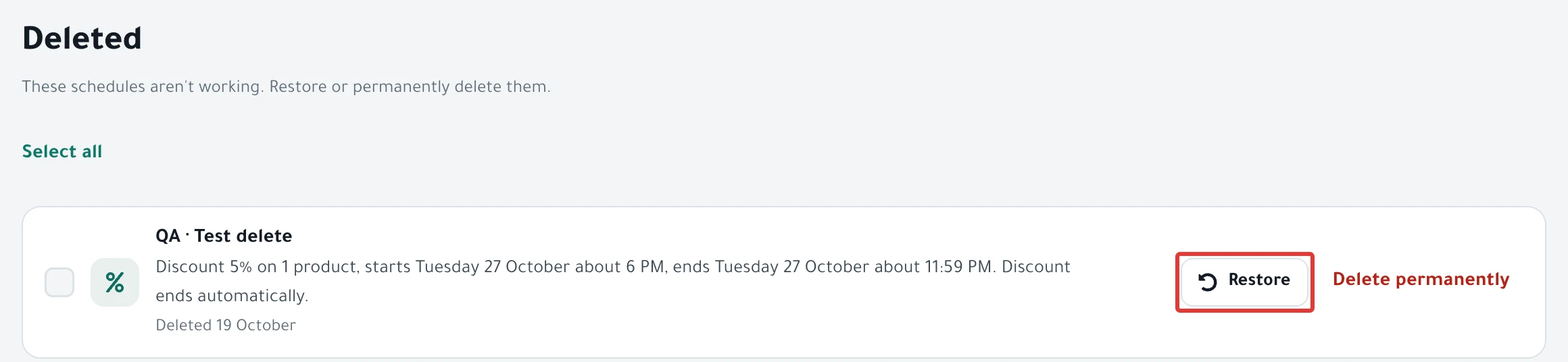
Deleted schedules
A schedule arrives here when you click Delete on its page and then Move to Deleted. Each line has its name and "Deleted" with the date of the deletion. PopAutomate never deletes a schedule permanently on its own, however long it stays here.
If its offer was live when you deleted it, the offer continues until its end. If the schedule restores its changes at the end, PopAutomate restores them at the end time as usual, even while it is in Deleted.
If some products did not come back, PopAutomate tries again on its own as usual, even while the schedule is in Deleted.
If it is Running, deleting does not stop the run. Click Stop execution on its page first, then delete it. See Schedule page guide: every button, status and run.
To choose more than one schedule, check the box next to each one, or click Select all. A bar appears at the bottom of the screen with, for example, "2 selected", and the Restore 2 and Delete 2 permanently buttons.
If you have no deleted schedules, "Nothing deleted" appears.
For deleting and restoring step by step, see Delete a schedule and restore it from Deleted.
Restore
Click Restore next to a schedule, and it goes back to Schedules right away, with no confirmation. Its status after the restore depends on its status before you deleted it:
- It was a draft: it comes back as a draft, and "Back as a draft. Activate it when it's ready." appears.
- It was Ended, Completed or Failed: it comes back as it was, and "Back in your schedules. It had already finished, so it won't run again." appears.
- In all other statuses, such as Scheduled, Paused or Offer Active: it comes back paused, and "Restored paused. Activate when ready." appears.
A paused schedule does not run until you click Activate on its page, or turn on its switch in Schedules. Check its dates first, because some may have passed.
Turning a schedule back on is explained in Pause a schedule and turn it back on.
Delete permanently
Click Delete permanently, and it asks "Delete permanently?" After you confirm, "Deleted permanently." appears, and you cannot restore the schedule after that.
The schedule's events in the Activity log stay after you delete it permanently, and a line for the deletion itself is added.
If the schedule has a restore waiting for its time, at the end of the offer or in a retry, PopAutomate does not delete it permanently. "Not deleted: its changes aren't back in your store yet. We'll put them back at the end, then you can delete it permanently." appears.
The schedule stays in Deleted, and PopAutomate restores its products at the end time. After that, you can delete it permanently. If you chose more than one schedule, PopAutomate deletes the rest, and a message like "Deleted the rest, and kept 2 whose changes aren't back in your store yet. …" appears.
A schedule with no restore waiting for its time is deleted, and its changes stay in your store. For example, one where you chose Changes stay, or one whose products stayed changed after the last restore attempt.
To restore its products before you delete it, click Restore on the Deleted screen, then click Restore on the schedule page. See Restore prices and products after a schedule ran. If you deleted it and the prices stayed, see Prices did not come back after an offer: causes and fixes.
If "Not saved. Try again." appears when you restore or delete, nothing changed. Try again.
Did this article answer your question?