Which products? step: choose products for a schedule
Which products? is the second step of a schedule. It has three tabs: Products, Categories and CSV file. Each schedule uses one of them.
The CSV file tab appears only with Discount and Change Price. The other screens are in PopAutomate screen guide: every screen and button.
Products
Choose products one by one. Search in the "Search by name or SKU" box, then check each product in the list.
- Select all results chooses the products the search shows now. The same button then reads Deselect results and clears them.
- Clear all clears everything you chose. The count appears in "Selected: …".
- Show more loads more products into the list.
A product you add to your store after you save does not join the schedule. If you choose no product, the screen says "Choose at least one product."
If the list does not load, an error message appears with a Retry button.
The full steps are in Choose discount products: products, categories or CSV?
Categories
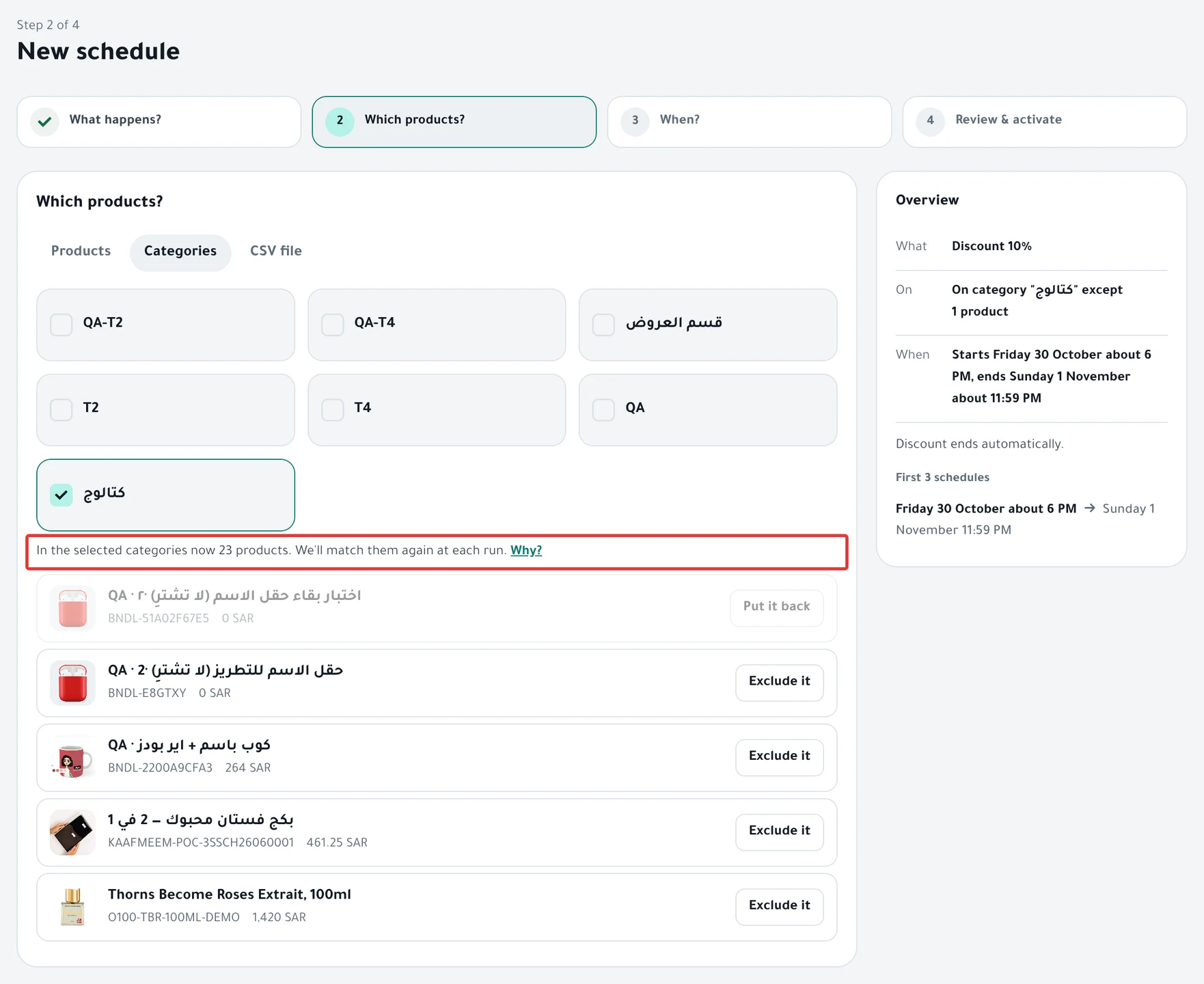
Choose one or more category cards. Under them, a line reads "In the selected categories now … products.", then a list shows some of each category's products, not all of them.
On Zid, this count may not match the number of products in the category. Open the category in your Zid dashboard to see the real count.
If you choose no category, the screen says "Choose at least one category."
With Change Price by a percentage or an amount, do not choose two categories that share a product: that product's price changes twice. The cause and the fix are in Wrong discount price in your store: causes and fixes.
Matching at run time
"When you select a category, we fetch its products at execution time, not now."
- "This means products you add to the category later will enter the offer automatically."
- "Preview shows category products now, and they may change."
If the category is empty at run time, nothing changes in your store. Read Empty category: the schedule found no products in it.
Exclude it
Each product in this list has an Exclude it button. An excluded product does not change, even if it stays in the category. Put it back cancels the exclusion.
You can exclude up to 1,000 products in one schedule. Exclusions work with Categories only.
CSV file
Upload a file with the products and a price for each one. A note above the file area lists the required columns:
| Type | Salla | Zid |
|---|---|---|
| Discount | product_id, sale_price | sku, sale_price |
| Change Price | product_id, new_price | sku, new_price |
- For a discount: "In the price column, enter the final offer price, not the discount amount." For a price change: "In the price column, enter the new price."
- The file can be up to 10 MB and 50,000 rows.
- Download Salla template or Download Zid template downloads a file with the column names only.
Drag the file onto "Drag a CSV file here or click to choose". "Checking the file…" appears, then a summary of the valid rows and the rows with a problem.
- Download problem rows downloads the rows that will not apply. Fix them and upload the file again.
- Upload another file replaces the file.
These errors can appear: "Upload the file first.", "The file has no valid rows." and, if you chose a percentage or an amount in Change Price, "CSV prices are new prices, not increases or decreases."
You cannot edit a CSV schedule after you save it. To change the file, delete the schedule and create a new one with the new file.
The steps are in Upload a CSV with a price per product on Salla and Zid. If the file is rejected, read CSV file rejected or has rejected rows: causes and fixes.
Next step: When? step: schedule timing in PopAutomate.
Did this article answer your question?