Permits page guide: discount permits in PopAutomate
The Discount permits page is a notebook for your discount permits (the license the Saudi Ministry of Commerce requires for sales and discounts). Save your permit numbers there and link them to discount schedules. PopAutomate does not check a permit with the Ministry, and it does not remind you when a permit ends.
Open it from Permits in the menu on the left. On your phone, it is in the account menu: tap the account button at the top (the circle with your first initial). The other screens are in PopAutomate screen guide: every screen and button.
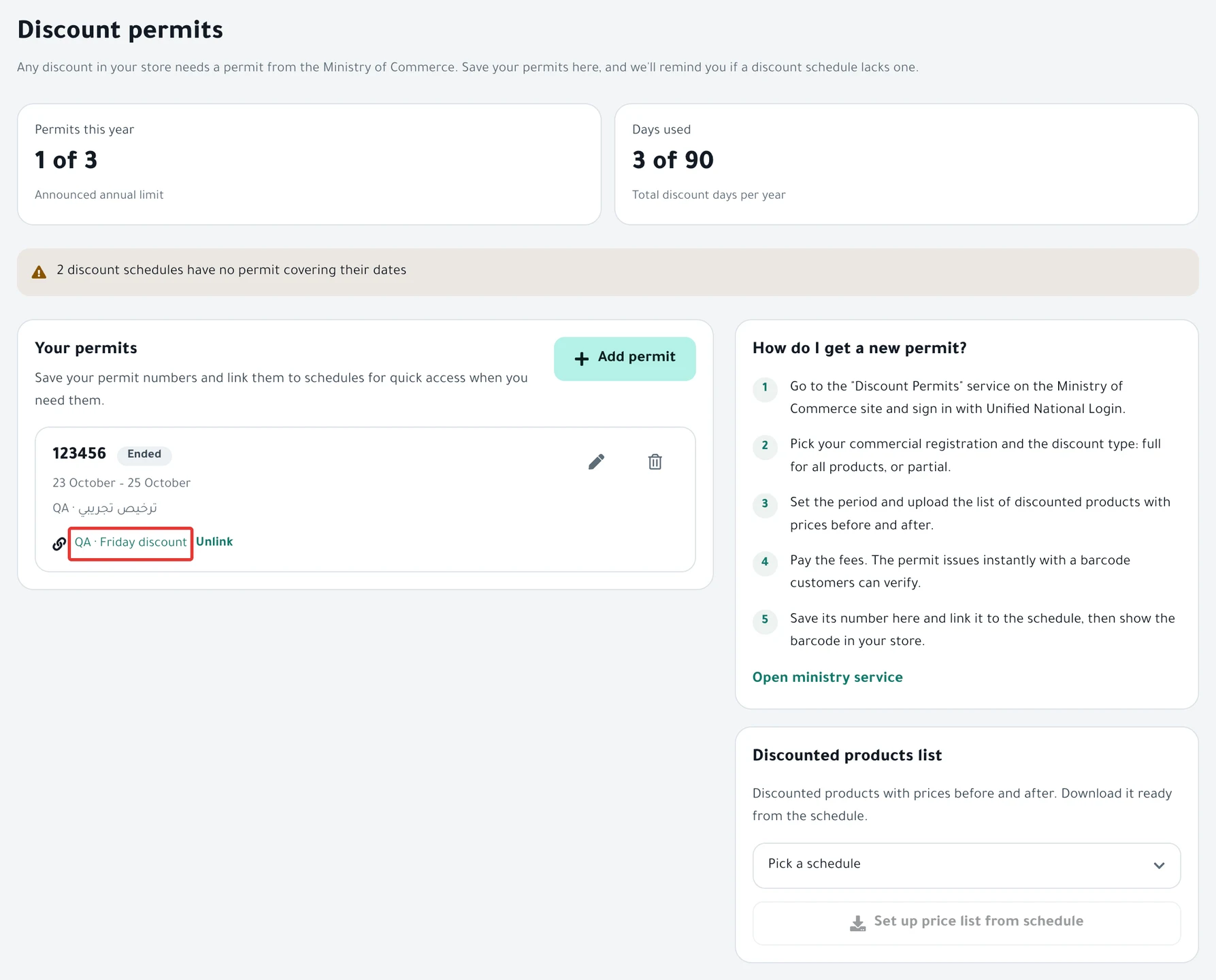
The two counters
At the top of the page, Permits this year shows a count such as "1 of 3", and Days used a count such as "20 of 90". PopAutomate counts them only from the dates of the permits you saved for this year.
This is only an estimate. The limits 3 and 90 are fixed on the page, and days that two permits share are counted twice. If you go over a limit, the counter changes color. Check the Ministry's rules yourself.
Warning: discount schedules without a permit
The yellow warning about discount schedules without a permit counts the discount schedules you have not linked to any permit. It counts schedules that are Scheduled, Offer Active, Running or Paused, and it does not compare dates.
The warning disappears when every discount schedule is linked to a permit. It appears on this page only, and PopAutomate does not email you about it.
Add permit
Next to Your permits, click Add permit. Fill in Permit number, Starts and Ends, and a Note if you like, such as the season's name. Then click Add permit in the form.
"Permit added." appears. If the number is missing, you read "Enter the permit number." If a date is missing, you read "Pick the start and end dates." If the end comes before the start, you read "End date must be after start date."
To edit a permit, click the pencil next to it, then click Save: "Permit saved." appears. To delete a permit, click the delete icon. A dialog asks "Delete this permit?" The schedules linked to it stay, but without a permit number.
If you see "Not saved. Try again.", nothing changed. Try again.
The steps are in Ministry of Commerce discount permit: save and link it.
Active, Upcoming and Ended
The state of a permit appears next to its number: Upcoming before the start day, Active between the start and the end, and Ended after the end day.
PopAutomate works out the state only from the two dates you entered, in your account time zone. It does not know if the Ministry canceled or extended a permit, so keep the dates up to date yourself.
Link a schedule
In the permit's row, click + Link schedule. The Link a schedule dialog opens. Choose a schedule from the "Pick a schedule" list, then click Save. The schedule's name appears in the row. Click it to open the schedule.
The list shows only discount schedules that are Scheduled, Offer Active, Running or Paused. Each permit links to one schedule. To remove the link, click Unlink. It takes effect right away, with no confirmation.
You can also choose the permit while you create the schedule, from Permit number in the Review & activate step, or leave it at No permit. For a one-time schedule, a warning reads "The permit's dates don't cover this schedule's dates." if the schedule's dates fall outside the permit. Read Schedule a discount on Salla and Zid.
Linking step by step is in Ministry of Commerce discount permit: save and link it.
Discounted products list
Next to the list is the Discounted products list card. Choose a discount schedule, then click Set up price list from schedule, and a CSV file downloads.
The file's columns are Product, SKU, Before and After. For a tiered discount, PopAutomate calculates After from the first step. Then "We've downloaded your price list. Upload it in your permit request." appears.
If the schedule's products come from a CSV file, or none of its products are left, you read "We couldn't build the list for this schedule." Check the prices in the file before you upload it.
The steps are in Discount price list: prepare it for your permit request.
The other card, How do I get a new permit?, lists the steps to request a permit from the Ministry of Commerce and has an Open ministry service link. You make the request on the Ministry's site, not in PopAutomate. For seasonal offers, read Occasions calendar: set up seasonal offers and permits.
Did this article answer your question?