Forgot your PopAutomate password: choose a new one
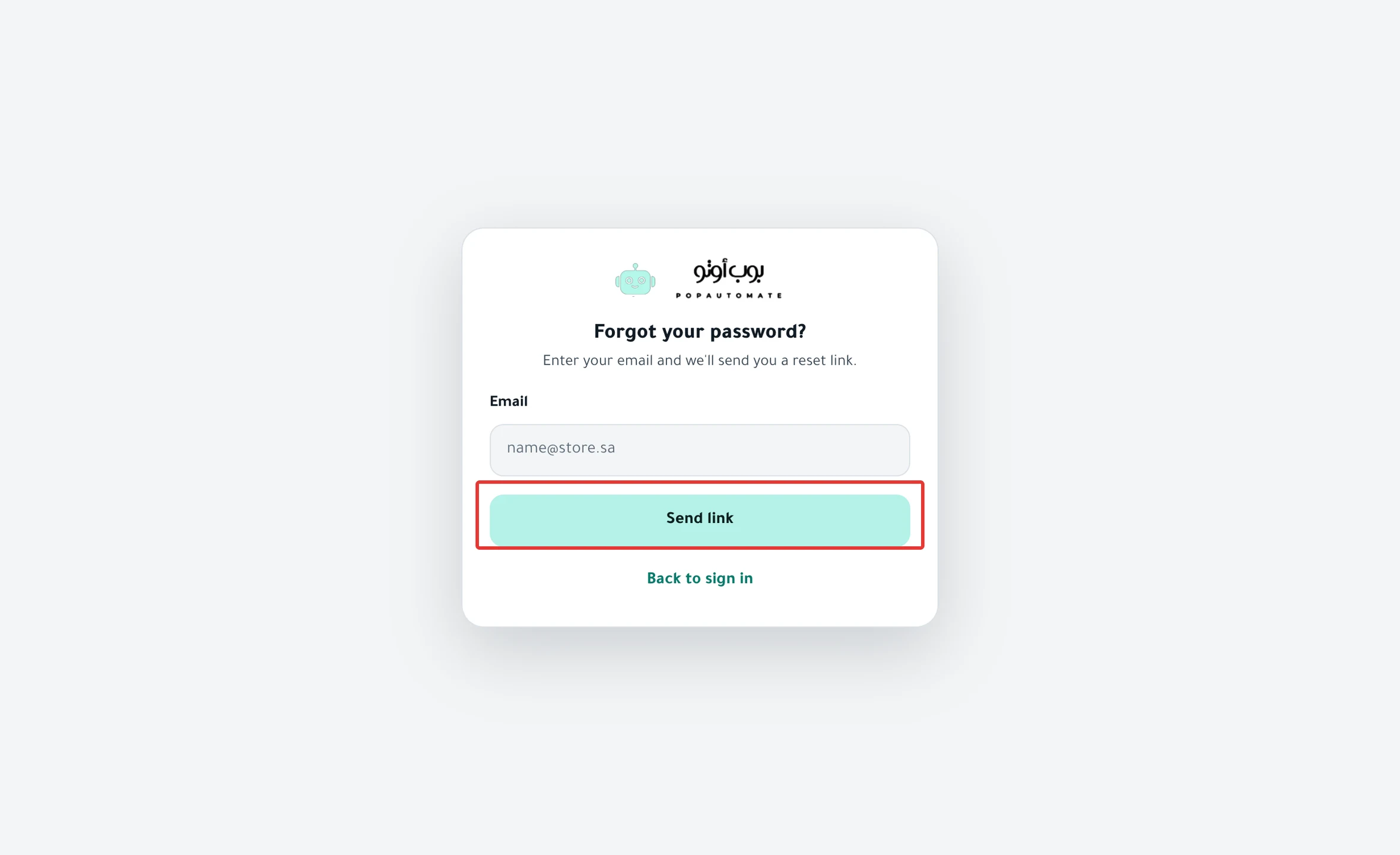
Click Forgot your password? on the sign-in page and enter your email. Then open the link you get within an hour, and choose a new password.
If you installed PopAutomate from a Salla or Zid store, your account starts with a password you do not know. Follow the same steps to choose one.
Steps
Path: sign-in page > Forgot your password? > Send link > the "إعادة تعيين كلمة المرور" email > Save password
- Open the PopAutomate sign-in page and click Forgot your password? under the Sign in button.
- Enter your account email and click Send link.
- Check your email appears. Open the email with the subject "إعادة تعيين كلمة المرور" ("Reset password") and click the إعادة تعيين كلمة المرور button in it. The email is in Arabic, like all PopAutomate emails to Salla and Zid stores.
- The Choose a new password page opens. Enter your password in New password. It must be at least 8 characters.
- Enter it again in Confirm password.
- Click Save password.
When you are signed in, you can request the same link: Settings > Account > Change password. On your phone, tap the account button at the top (the circle with your first initial), then Settings.
"We sent a password reset link to …" appears. Open the "إعادة تعيين كلمة المرور" email, click the button in it, then continue from step 4.
Result
Your password is changed and "Sign in with your new password." appear. Click Sign in, then sign in with your email and your new password.
After you sign in with email and password, check Timezone as described in Change the schedule time zone in PopAutomate.
Rules
- The link works once, for one hour. After that you see This link has expired. Click Send link there, then Send link again on the next screen to request a new link.
- Wait a minute between requests. A second request within a minute shows Check your email but sends no new email, so use the first email.
- PopAutomate sends the link to your account email only. You find it in Settings > Account, and you cannot change it there: "You can't change it here. Contact us if you need another email."
- If you enter an email that is not registered, Check your email also appears, and nothing arrives.
If it did not work
- No email within a minute? Make sure you entered your account email, then request the link again after a minute. If it still does not arrive, message us as described in Contact PopAutomate support on WhatsApp.
- Do you see "The passwords don't match."? Enter the same password in both fields.
- Do you see "Too many attempts. Wait a minute and try again."? Wait a minute. Each step accepts 5 attempts per minute.
- You chose a password, but email sign-in still does not work? Read Wrong password: email sign-in does not work in PopAutomate.
- Want to skip the password? Click Sign in with Salla or Sign in with Zid on the sign-in page.
Next
Sign in to PopAutomate with your Salla or Zid account
Go back to PopAutomate account: store connection, password, time zone.
Did this article answer your question?