Run a quick discount on Salla and Zid from Home
On Home, click Quick offer, choose the discount, the products and how long the offer lasts, then click Run now. The discount ends on its own when the time is up.
On Zid, every option of a product gets the main product's sale price. If your options have different prices, schedule the discount from New schedule with Final offer price.
With Whole store, PopAutomate includes only the Zid products that have a SKU. After the first run, open a product in your Zid dashboard and check that the discount is there.
On Zid, a duration that ends at the end of the day ends at 2:59 AM Riyadh time (GMT+3).
If you schedule Next weekend before Friday, on Zid it starts on Friday at 3 AM. It ends on Saturday at 2:59 AM, so Saturday is not included. For a Zid offer that covers all of Saturday, create a New schedule and set its end yourself.
Steps
Path: Home > Quick offer > Discount amount? > On what? > Until when?
- Open Home and click Quick offer at the top of the page. On your phone, it is under the page title.
- Under Discount amount?, choose 10%, 15%, 20%, 25%, 30% or 40%. 20% is chosen when the window opens.
- Under On what?, choose Whole store, or choose One category and then click the category name.
- Under Until when?, choose how long the offer lasts. The table below the steps shows each option.
- Read the sentence under your choices. It gives the discount, the products, and when the offer starts and ends.
- Click Run now. If the offer starts on a later day, the button reads Schedule instead.
| Duration | When it starts and ends |
|---|---|
| Until midnight | Starts now and ends today at 11:59 PM |
| 24 hours | Starts now and ends tomorrow at the same minute |
| 3 days | Starts now and ends at 11:59 PM on the third day, counting today as the first |
| Next weekend | Starts on Friday at 12:00 AM and ends on Saturday at 11:59 PM |
On a Friday, Next weekend starts right away and the button reads Run now. On a Saturday, Next weekend means Friday and Saturday of the following week.
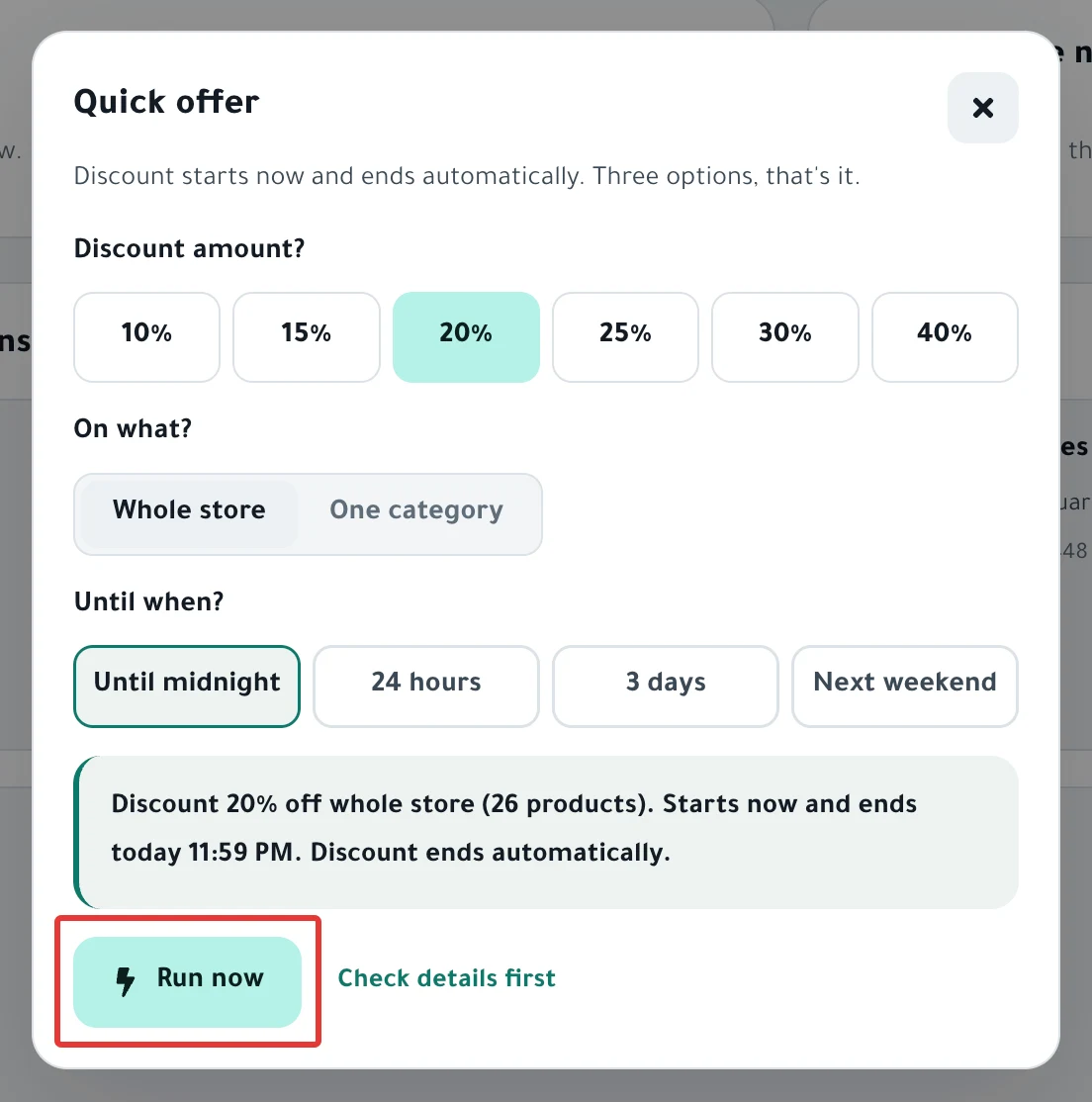
Want to review the offer before it runs? Click Check details first. PopAutomate saves it as a Draft and opens the Review & activate step on the edit page.
What your customers see
A message with the offer's name appears ("Created «…»."), and the schedule page opens. The name starts with "Quick offer", then the discount and the date.
- PopAutomate changes the products one after another, at about 10 minutes per 100 products. The schedule shows Running, then Offer Active.
- Customers see the sale price, with the original price crossed out next to it. The look depends on your store theme.
- When the time is up, the discount ends on its own and the original price comes back.
- If another run is in progress in your store, you see "Another run is in progress in your store. The offer waits its turn." Your offer starts after it.
Rules
- Whole store means the products in your store at the moment you click the button. A product you add after that is not part of this offer.
- With One category, PopAutomate reads the category's products at run time.
- In PopAutomate, the weekend is Friday and Saturday. All times are in your account time zone.
- If a product already had an earlier sale price, your discount replaces it. When the offer ends, the earlier sale price does not come back, so set it again yourself in Salla or Zid.
- On the review page you reach with Check details first, the Save changes button activates the offer. If the offer starts now, the run starts in your store right after you save.
- To keep it as a draft, leave the page without clicking anything. It is already saved in Schedules with the Draft status. Save as draft does not work for an offer that starts now.
- For other days or a different discount amount, create a New schedule instead of a quick offer, as in Schedule a discount on Salla and Zid.
- To end the offer early, open it from Schedules. A quick offer is a schedule like any other. See End an offer and restore prices now.
If it did not work
- The discount did not appear in your store: A schedule did not run on time: why and how to fix it
- Some products kept their price: Some products did not change after a schedule ran
- The sale price is not what you expected: Wrong discount price in your store: causes and fixes
- You see "We couldn't find any products in your store." PopAutomate found no products. On Zid, make sure your products have a SKU, or choose One category.
- You see "We couldn't create the offer. Nothing changed in your store." Try again in a little while.
Next
Schedule run results: what changed in your store?
Or go back to Get started with PopAutomate on your store.
Did this article answer your question?